Courses control the order in which dishes are prepared and served, such as Entrees, Mains and Desserts. Products can be assigned to courses automatically based on their Back Office configuration, or selected manually by staff when ordering on Oolio One POS. Each Course can be configured to send automatically to kitchen printers and KDS, or wait until it is manually fired from POS.
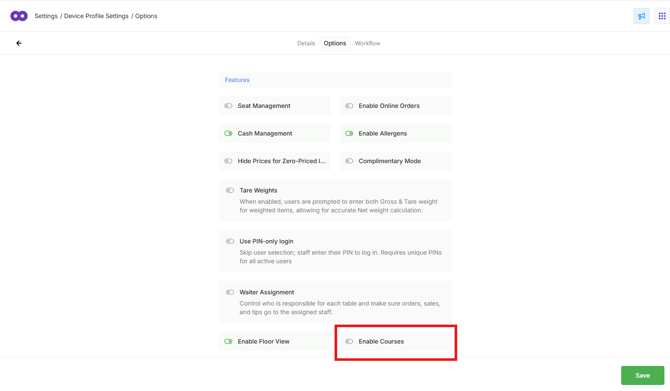
Courses are enabled at the Device Profile level, so they can be used on selected POS devices rather than across the entire location.
Before starting
-
Create Courses only for locations that use course management.
-
Before using Courses during service, Enable Courses must be turned on for the required Device Profile. Changes to a Device Profile affect all devices using that profile.
Step 1: Choose how Courses are assigned
Before creating Courses, choose whether products are assigned to a Course automatically or manually when an order is taken.
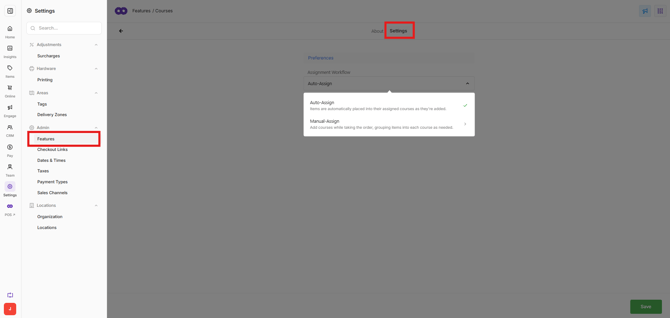
Open Back Office > Settings > Features > Courses > Settings, then select the required assignment method:
- Automatic assignment: Products are automatically assigned to their configured Course when ordered in POS. When using this setting, each applicable product must be assigned to a Course in Back Office.
- Manual assignment: The POS user selects the Course when ordering the product. Products do not need to be assigned to Courses in Back Office when using this setting.
Select the assignment method that matches the venue's service workflow, then save the changes.
Step 2: Create Courses
Create Courses in the sequence dishes should be prepared and served.
For example:
Entrees → Mains → Desserts
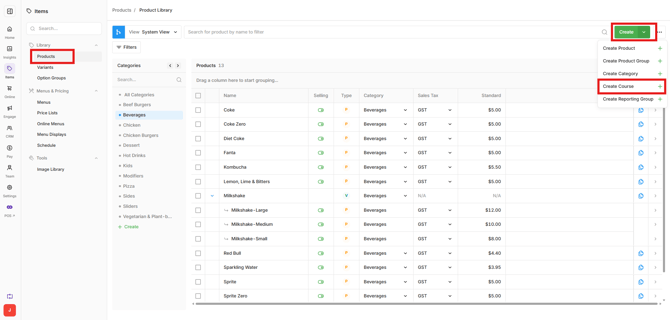
- Open Back Office > Items > Products.
- Select Create.
- Select Course.
- Enter the Course name.
- Create the remaining Courses in the order they should be served.
Step 3: Reorder Courses
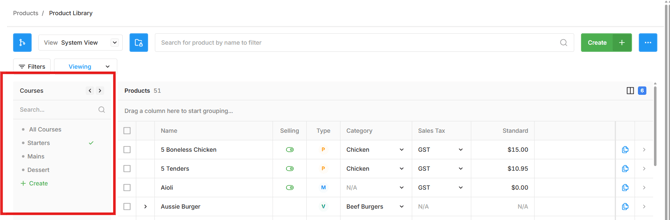
If the Courses are not in the required sequence, reorder them from the Courses view.
- Open Products.
- Change the Library Structure view to Courses.
- Select and drag the required Course.
- Drop the Course into the correct position.
- Repeat until the Courses are in the required order.
The order shown in the Library Structure determines the Course sequence.
Step 4: Assign a Course to a product
Products only need to be assigned to Courses in Back Office when using Automatic Assign. If using Manual Assign, the POS user selects the Course when ordering, so a Course does not need to be assigned to the product.
Note: Change the assignment method in Features > Courses > Settings.
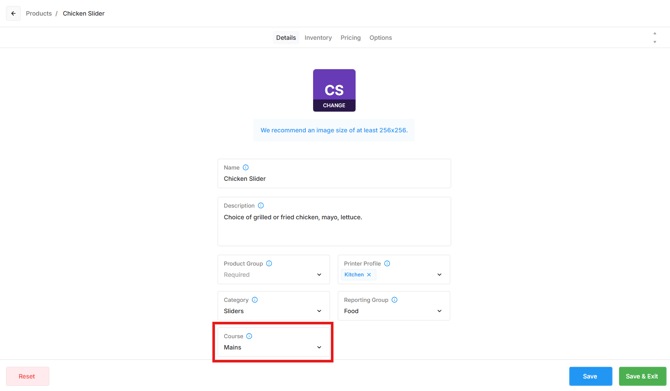
- Open Products.
- Find the product to update and edit.
- Select the required Course from the list.
- Save the changes.
The product is now assigned to the selected Course.
Step 5: Assign a Course to multiple products
Use the bulk change option when several existing products need to be assigned to the same Course.
- Open Products.
- Select the checkbox next to each product to update.
- Select Options at the top right.
- Select Change Course.
- Select the Course to assign to the selected products.
- Select Next.
- Review the changes.
- Select Publish.
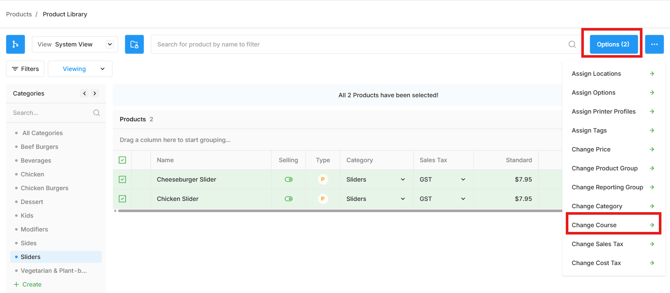
The selected products are assigned to the Course and can be viewed under that Course in the Library Structure.
Step 6: Configure Auto Fire
Auto Fire controls whether a Course is automatically sent to the configured kitchen printers and KDS or needs to be manually fired during service.
Configure Auto Fire separately for each Course:
- Open Products in Back Office.
- Change the Library Structure view to Courses.
- Find the Course to change.
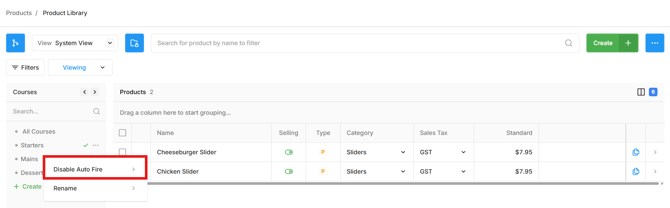
- Hover over the Course and select the ellipsis.
- Select Disable Auto Fire to require the Course to be manually fired.
If Auto Fire is already disabled, select Auto Fire to enable automatic firing.
Important: When using Manual Fire, the POS user must fire each Course when it is required. A Course that has not been fired is not sent to the kitchen printers or KDS.
Step 7: Enable Courses on POS
Courses are enabled at the Device Profile level. This allows Courses to be enabled only for the POS devices where course management is required.
Important: Changes to a Device Profile affect all devices using that profile.
- Open Settings > Locations > Store > Device Profiles tab.
- Select the required Device Profile.
- Open the Options tab.
- Turn on Enable Courses.
- Select Save.
Turn Enable Courses off if devices using that profile should no longer use course management.