
Surcharges are created in back office and add a fixed dollar amount or percentage to an order when specified conditions are met. They can be applied manually or automatically and configured for use across Oolio One POS and the Oolio Online Store.
Surcharges can also be restricted by location, sales channel, order type, user role, payment type or guest count, and scheduled for specific dates, days and times. For example, a venue could create and schedule a surcharge to apply on a public holiday.
Step 1: Create a Surcharge and configure Details & Availability
Create the Surcharge and configure how and where it can be applied.
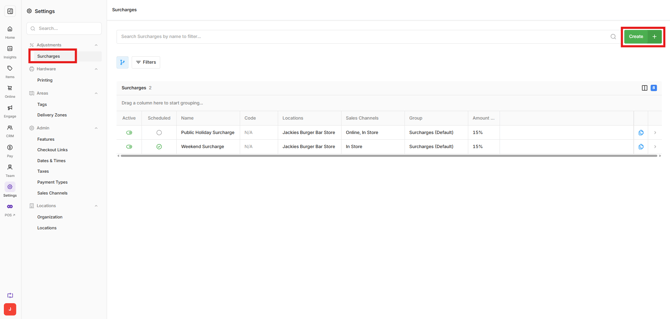
- Open Back Office > Settings > Surcharges.
- Select Create.
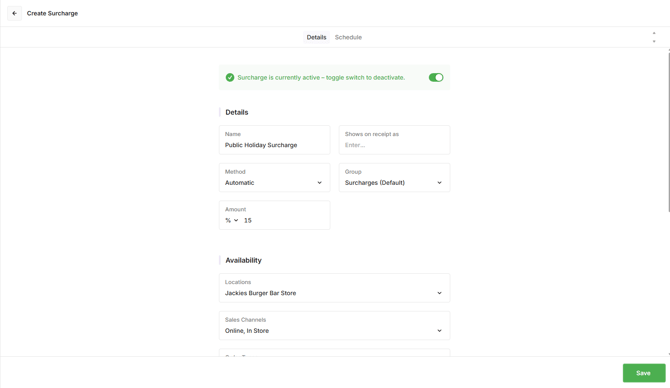
- Complete the Details:
- Name: Enter a name that clearly identifies the Surcharge.
- Shown on Receipt as: Enter alternative text to display on the customer's receipt if required.
- Method: Select whether the Surcharge is manually applied or automatically assigned.
- Group: Select the reporting group used to group the Surcharge for reporting.
- Amount: Enter the Surcharge amount and select whether it is a dollar value or percentage.
- Configure the required Availability:
- Locations: Select the locations where the Surcharge is available.
- Sales Channels: Select where the Surcharge can be used. This determines whether the Surcharge is available on Oolio One POS, the Oolio Online Store, or both.
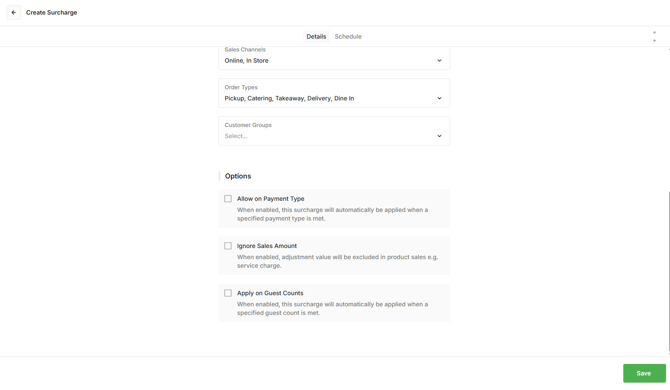
- Order Types: Select the order types where the Surcharge applies.
- Customer Groups: Restrict the Surcharge to a particular customer group if required.
- Configure additional Options
- Allow on Payment Type: Enable this when the Surcharge should only apply to a specific payment type.
- Ignore Sales Amount: Enable this when the Surcharge value should be excluded from product sales. For example, this could be used for a service charge that should not contribute to product sales amounts.
- Apply on Guest Counts: Enable this when the Surcharge should automatically apply once the specified guest count is met. Once ticked, select the guest count from the drop down.
- Select Save.
Step 2: Schedule the Surcharge
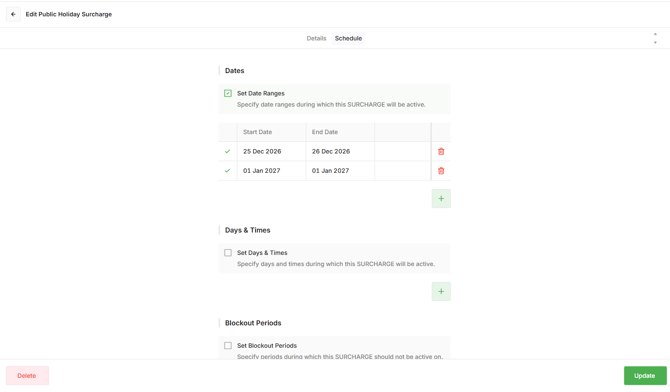
Configure a schedule when the Surcharge should only apply during particular dates, days or times. For example, a public holiday Surcharge can be scheduled to apply automatically on the relevant dates.
Configure any combination of:
- Dates: Set the date range when the Surcharge is available.
- Days and Times: Set specific days and trading periods when the Surcharge should apply.
- Blockout Periods: Exclude specific periods when the Surcharge should not apply.
The scheduling options can be used together. For an all-day Surcharge that applies on a particular date, set the required Dates and leave Days and Times empty.
Once set, select Update.
The Surcharge is now available according to its configured method, availability, conditions and schedule.