Portion Combos are configured in Back Office and allow multiple products to make up portions of a single item, such as a half-and-half pizza. The Combo price can be fixed or calculated from the products selected for each portion.
Unlike a Standard Combo, a Portion Combo uses one Product Option Group. The same Option Group is presented for each portion of the Combo during ordering.
Before starting
-
Create the Combo and the products that will be available as portion selections before configuring the Portion Combo.
-
Only one Product Option Group is required. Add all products that customers can select as portions to this group.
-
See Create a Standard Combo for instructions on creating a Combo and Product Option Group.
Step 1: Configure the Portion Combo
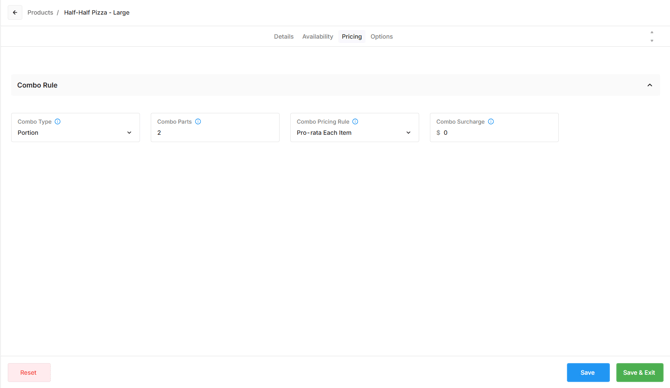
Open the Pricing tab to change the Combo Type and determine how the Combo price is calculated.
- Open the Combo
- Open the Pricing tab.
- For Combo Type, select Portion.
- Enter the number of Combo Parts that make up the product. For example, enter 2 for a half-and-half pizza.
- Select the required Combo Pricing Rule:
- Fixed: Uses a set price regardless of which products are selected for the portions. Enter the Sales Tax and selling price in the Standard Price List column
- Pro-Rata Each Item: Divides the price of each selected product by the number of portions, then combines the amounts to calculate the Combo price. A Combo Surcharge can also be added.
- Use Highest Priced Item: Uses the selling price of the highest-priced selected product as the Combo price. A Combo Surcharge can also be added.
For example, with Pro-Rata Each Item, a two-part Combo containing a $20 Hawaiian Pizza and an $18 Vegetarian Pizza is calculated as:
- Hawaiian Pizza: $20 ÷ 2 = $10
- Vegetarian Pizza: $18 ÷ 2 = $9
- Combo price: $19
Adding a $2 Combo Surcharge would make the final Combo price $21.
- Select Save
Step 2: Add the Product Option Group
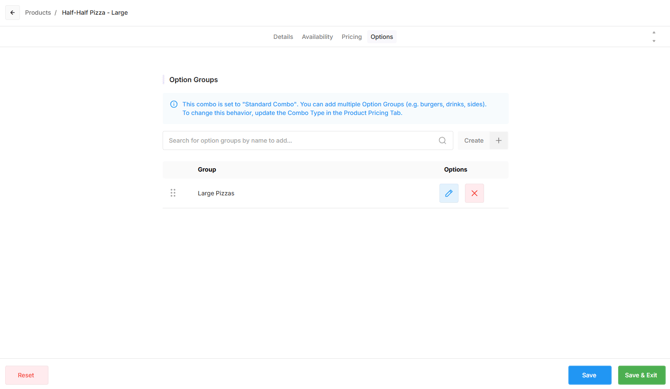
A Portion Combo must use one Product Option Group containing all products available for selection as portions.
The Option Group is presented once for each Combo Part configured in the Pricing tab. For example, when Combo Parts is set to 2 for a half-and-half pizza, the same Option Group is presented twice during ordering so a product can be selected for each half.
- Open the Options tab.
- Search for the Product Option Group created for the Portion Combo and select on it to add.
- Select the edit pencil to view the products within the Option Group.
- Select Save