
Create a Discount that becomes available when a selected Payment Type is used in Oolio One back office. For example, configure a 5% Discount that staff can apply when a customer pays by cash.
First enable the required Payment Types, then create a Standard Discount and configure its availability.
Step 1: Enable the Payment Types
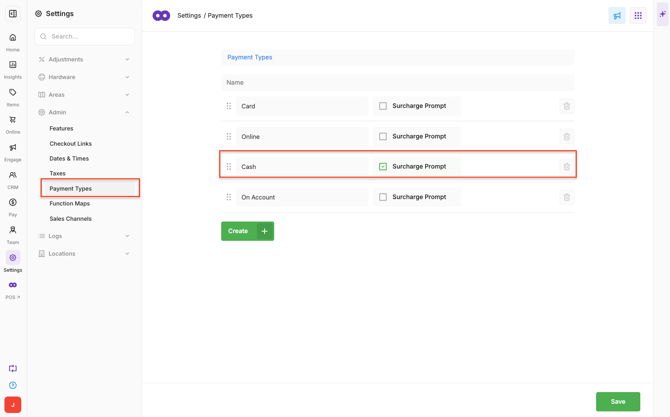
Enable Surcharge Prompt for each Payment Type that should make the Discount available.
- Go to Back Office > Settings > Payment Types.
- Find the required Payment Type.
- Enable Surcharge Prompt. (which is also used for discounts)
- Repeat for any other eligible Payment Types.
- Select Save.
Enabling Surcharge Prompt allows the Discount prompt to appear in Oolio One when the Payment Type is selected.
Step 2: Create the Discount
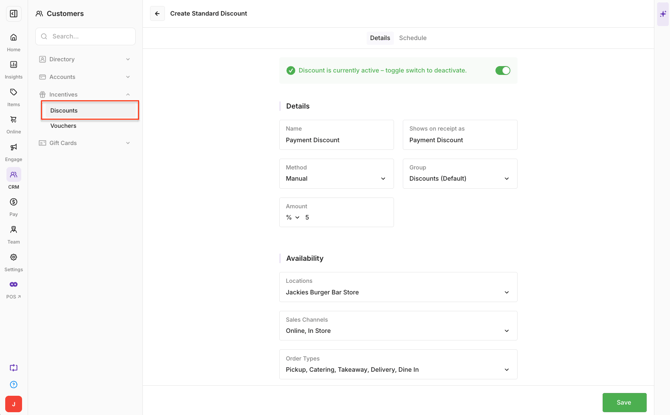
Create a Standard Discount and enter the Discount details.
- Go to Back Office > CRM > Discounts.
- Select Create.
- Select Standard Discount.
- Complete the required Details:
- Name: Enter a name that clearly identifies the Discount.
- Shown on Receipt as: Enter alternative text to display on the customer's receipt, if required.
- Method: Select Manual.
- Group: Select the reporting group used to group the Discount for reporting.
- Amount: Enter the Discount amount and select whether it is a dollar value or percentage.
Important: The Method must be set to Manual. Discounts configured by Payment Type are selected from the payment screen when an eligible Payment Type is used.
Step 3: Configure Availability
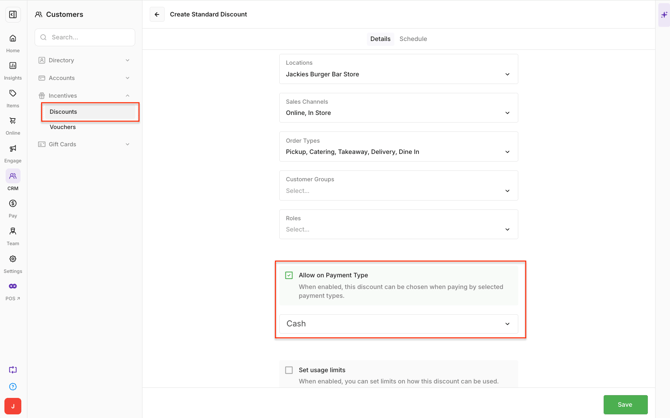
Select where the Discount can be used and which Payment Types qualify.
- Open Availability.
- Configure the required options:
- Locations: Select the Locations where the Discount is available.
- Sales Channels: Select the Sales Channels where the Discount can be used.
- Order Types: Select the Order Types where the Discount can apply.
- Customer Groups: Restrict the Discount to a Loyalty Customer Group, if required.
- Roles: Select which Roles can apply the Discount.
- Enable Allow on Payment Type.
- Select the Payment Types that qualify for the Discount.
- If required, enable Set Usage Limits and configure:
- Minimum Spend
- Max Discount Value per Order
Step 4: Apply the Discount
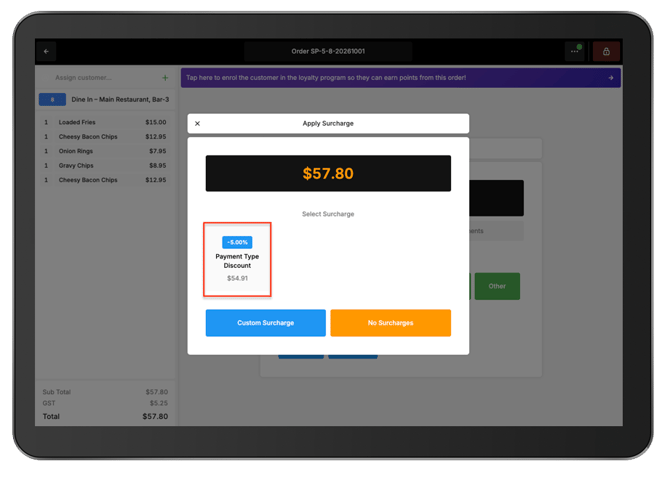
When an eligible Payment Type is selected in Oolio One, the Discount becomes available on the payment screen.
- Create the order and select Pay.
- Select an eligible Payment Type.
- For a cash payment, select a Cash payment button or enter the Tendered amount.
- Select the available Discount.
- Check the discounted total.
- Complete the payment.
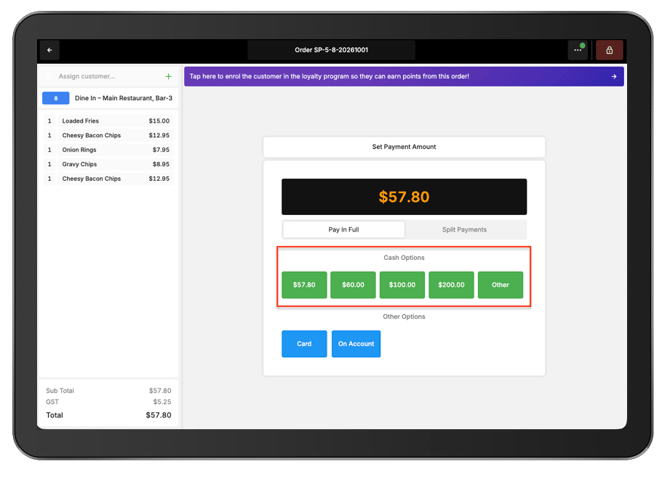
Note: If a small balance remains after payment, such as $0.01, select the Cash Payment Type and enter $0.00 as the tendered amount. Cash rounding will finalise the remaining balance.