
Copying a product in Oolio One Back Office creates a new product using the configuration of an existing product. This can reduce setup time when creating similar products, as the existing product settings are copied and key details can be changed before the new product is created.
Step 1: Select the product to copy
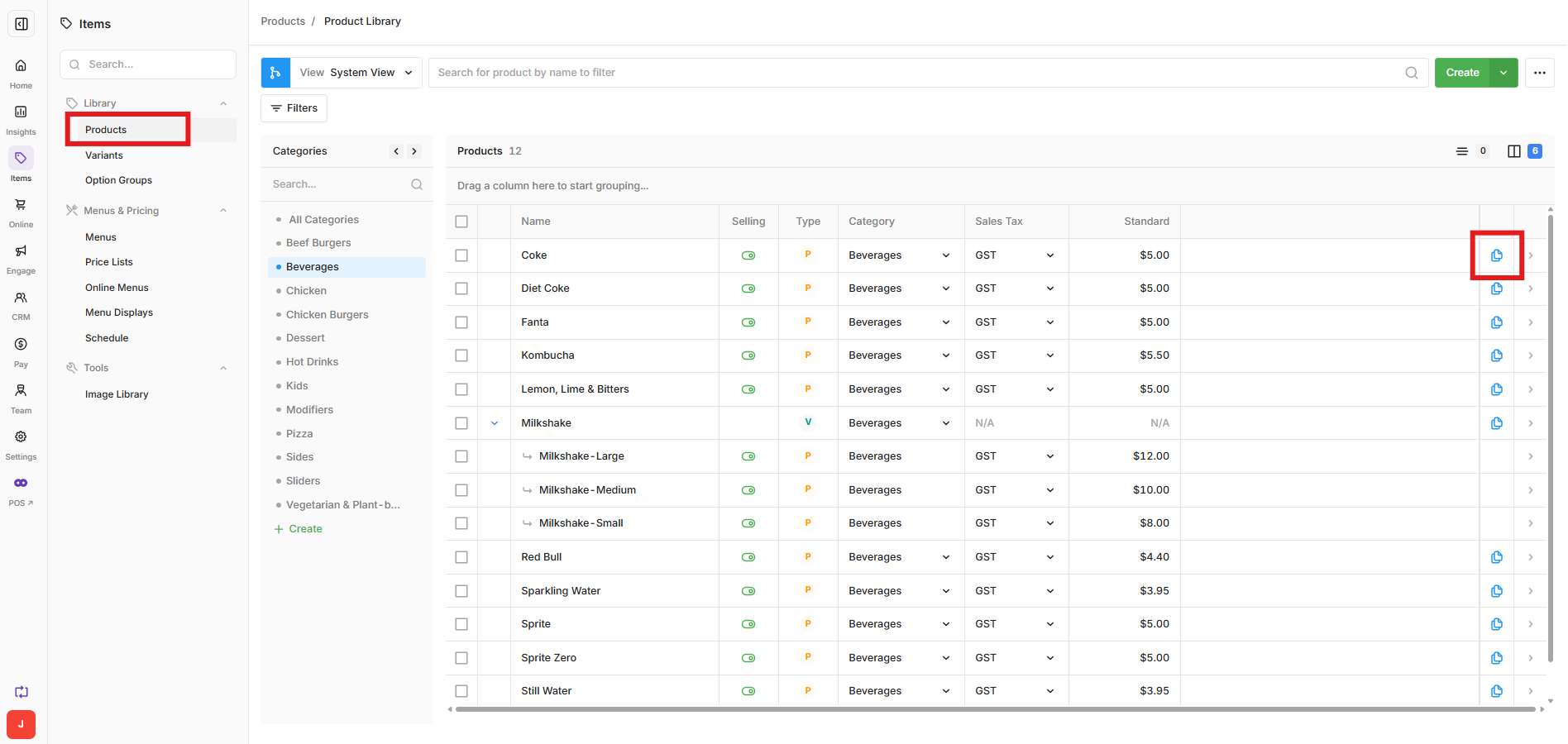
- Open Back Office > Items > Library > Products.
- Find the product to copy.
- Select the Copy icon beside the product, shown as two overlapping pages.
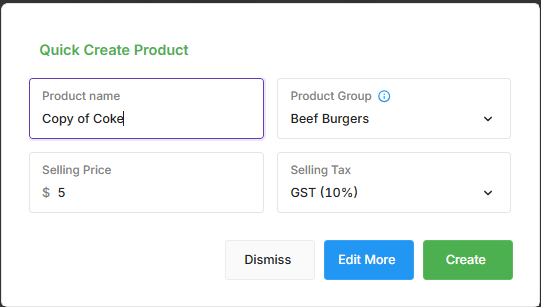
The Quick Create Product screen opens with details copied from the existing product.
Step 2: Review the product details
The Quick Create Product screen allows the following details to be set or changed for the new product:
- Product Name
- Selling Price
- Tax Code
- Product Group
All other product settings are copied from the original product.
Review these details and make any required changes.
Step 3: Create or edit the product
Choose how to continue:
- Select Create to create the new product using the details entered and the remaining settings copied from the original product.
- Select Edit More to open the full product settings and review or change other settings before creating the product.
The copied product is created as a separate product and can be managed independently from the original.