
Connect Restoke to Oolio One to send Product and sales information to Restoke for inventory tracking, recipe costing and cost of goods sold (COGS).
Once connected, select the Oolio One Products to track in Restoke and link them to the required recipes.
Before starting
Before connecting Restoke:
- Have access to the Location's Restoke account.
- Have access to Oolio One Back Office.
- Confirm the required Products and Categories have been configured in Oolio One.
- Have permission to approve the Restoke connection to Oolio One.
Step 1: Find the Org ID
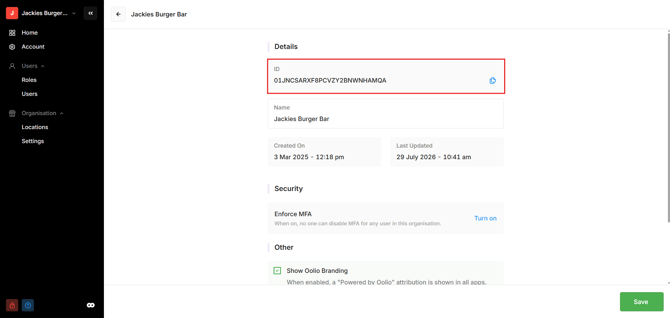
The Oolio One Org ID is required to connect Restoke.
- Log in to Oolio One Back Office.
- Open Org Settings.
- Find the Org ID.
- Copy the Org ID.
Keep the Org ID available for the Restoke setup.
Step 2: Connect Restoke
From Restoke:
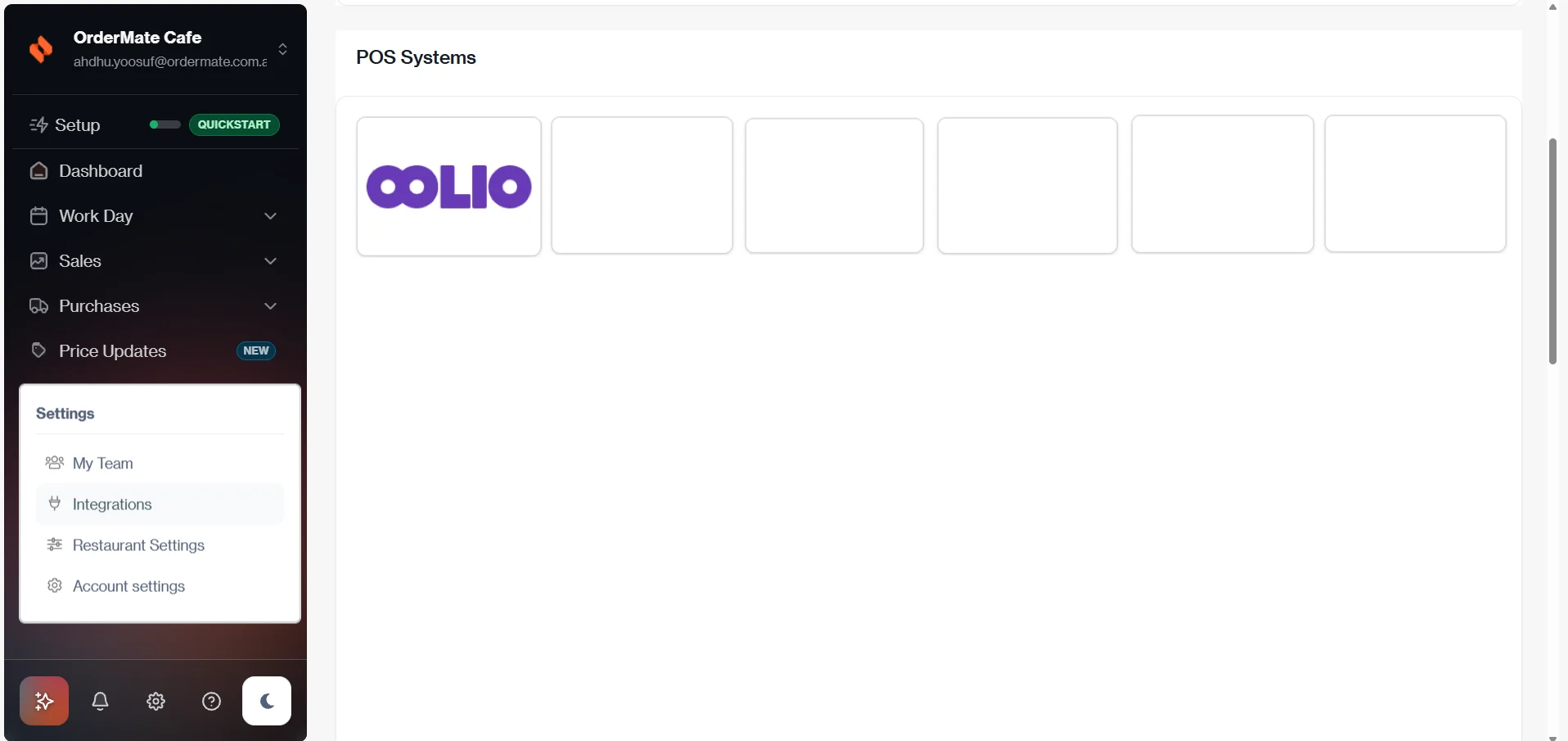
- Select the Settings gear icon in the bottom-left corner.
- Select Integrations.
- Select Oolio.
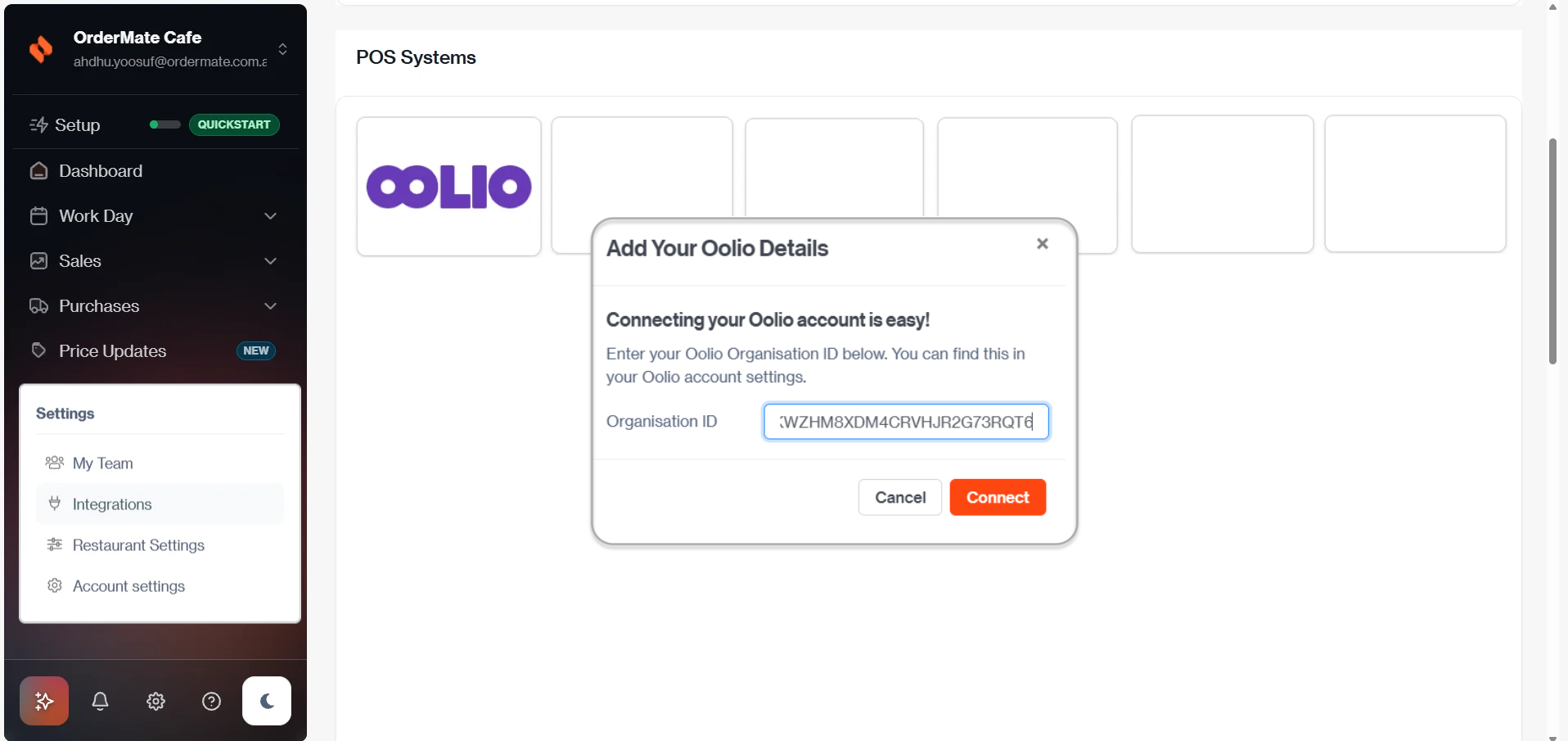
- Paste the Oolio One Org ID.
- Select Connect.
When prompted:
- Log in to Oolio One.
- Approve access for Restoke.
Restoke begins syncing the required Product information from Oolio One.
Step 3: Select Products to track
After the sync is complete, select the Oolio One Products that need to be tracked in Restoke.
- Review the imported Categories and Products.
- Select the Categories or individual Products to track.
- Select Track Selected.
- Review the selected Products.
- Confirm the selection.
Products that are not selected will not use Restoke stock tracking.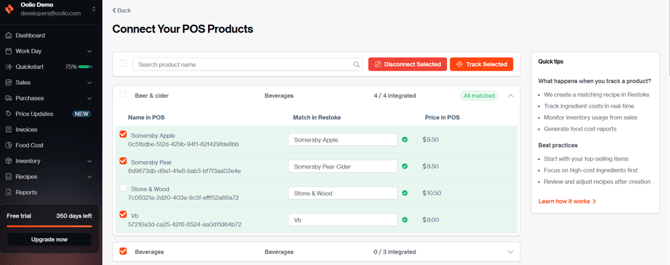
After confirmation, Products display their matching status in Restoke.
Step 4: Review the imported Products in Restoke
Oolio One Products selected for tracking are available in Restoke for recipe configuration.
- Go to Recipes and Menus > Dish Recipes.
- Review the imported Categories and Products.
- Move Products or Categories between Dish Recipes and Beverage Recipes where required.
To move a Category:
- Select the blue circle on the Category card.
- Select the required move option.
To move an individual Recipe:
- Open the Recipe.
- Select the required Category from the top-right corner.
List View can also be used to access available bulk actions.
Next steps
After the Oolio One Products have been imported, complete the recipe and ingredient setup in Restoke.
Configure any required Prep Recipes before completing the costing for Dish Recipes or Beverage Recipes. Supplier items and raw ingredients are managed through Restoke's supplier and invoice workflows.
Once the recipes and ingredients are configured, sales from Oolio One can contribute to inventory depletion and COGS calculations in Restoke.