Connect a supported payment terminal to Oolio One POS to process integrated card payments directly from the POS. The terminal model and serial number are used to create the Terminal ID required during setup.
Before starting
Before connecting the terminal:
- Confirm the payment terminal model.
- Find the terminal serial number.
- Make sure the payment terminal is powered on and ready for use.
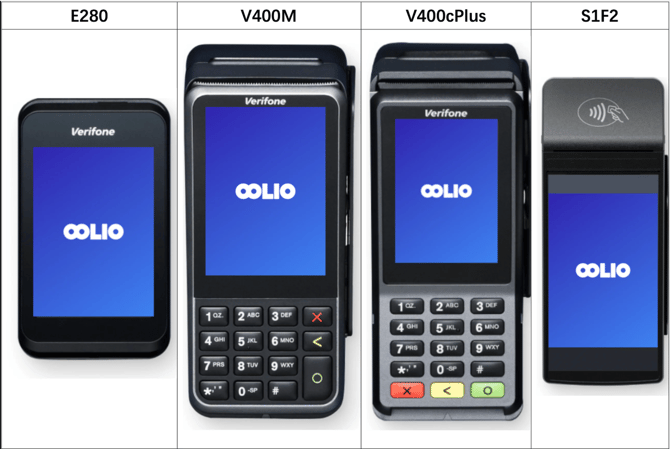
Supported models included in this setup are:
- E280
- S1F2
- V400m
- V400cPlus
Step 1: Find the terminal serial number
The steps for finding the serial number depend on the terminal model.
E280:
- On the terminal, select Menu > Device info.
- Locate the serial number.
S1F2:
- On the terminal, select Settings > Device info.
- Locate the serial number.
V400m and V400cPlus:
- On the terminal, select 5.
- Press the Confirm key.
- Locate the serial number.
Keep the terminal model and serial number available for the next step.
Step 2: Open the payment terminal settings
-
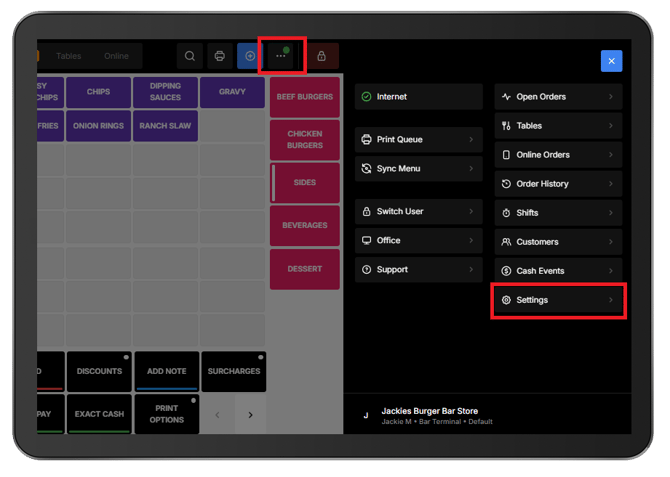
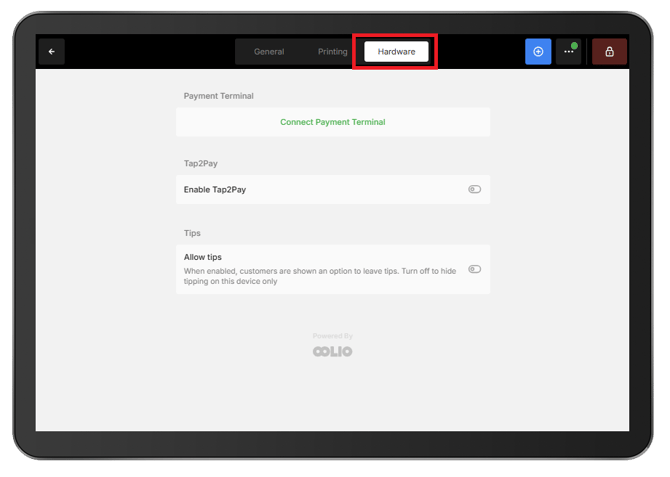
In Oolio One POS, open Settings > Hardware
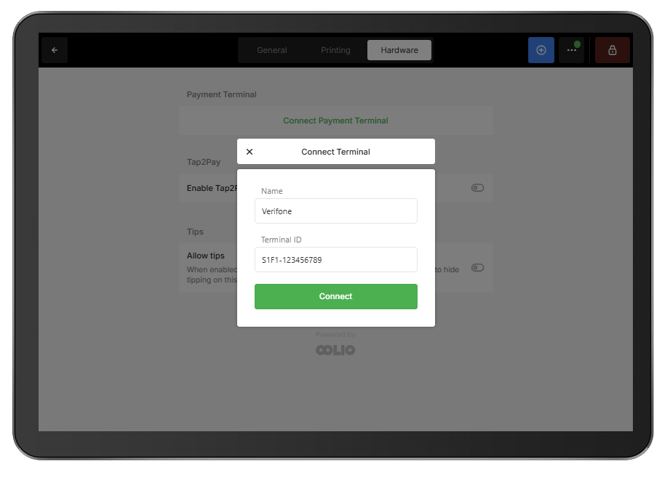
- Select Connect Payment Terminal.
Step 3: Enter the payment terminal details
Enter the terminal details:
- Name: Enter a name that identifies the terminal, such as
Verifone. - Terminal ID: Enter the terminal model and serial number in the required format.
-
Use:
{Model Name}-{Serial Number}-
For example:
-
E280-123456789 -
V400m-123456789 -
V400cPlus-123456789 -
S1F2-123456789
-
-
-
Select Connect Terminal.
Step 4: Test the terminal connection
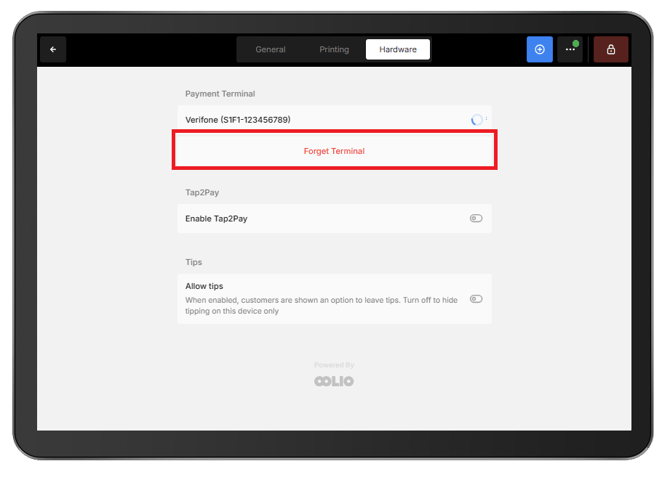
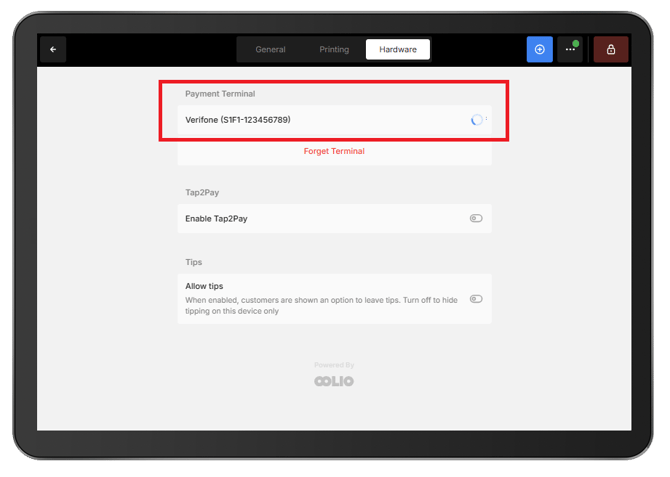
Test the connection after pairing the terminal.- From Settings > Hardware, select the connected payment terminal.
- Confirm that the terminal responds to the connection test.
Disconnect a payment terminal
Remove the connection when a payment terminal should no longer be paired with the POS.- Open Settings > Hardware.
- Select the connected payment terminal.