
Connect Deputy to Oolio One to send sales, user, and time and attendance information to Deputy. The integration is a one-way sync from Oolio One to Deputy, with individual options available to control which information is sent.
Before starting
Before connecting Deputy:
- Have access to the required Deputy business.
- Have the Deputy login credentials available.
- Confirm which Oolio One Stores need to connect to Deputy.
- Confirm which Deputy Locations and Areas should correspond with the Oolio One Stores and POS terminals.
Important: Avoid managing clock-ins and timesheets in both Oolio One and Deputy when Sync Timesheets is enabled. Clock-in and clock-out information only syncs from Oolio One to Deputy, so using both systems to record attendance may create duplicate records.
Step 1: Open the Deputy integration
From Oolio One Back Office:
- Go to Settings > Features > Integrations.
- Select Deputy.
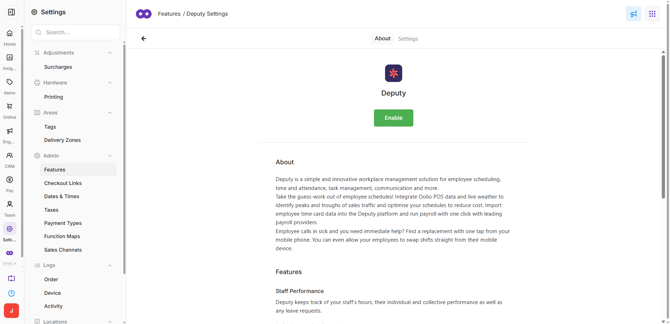
- Select Enable.
The Deputy login screen opens.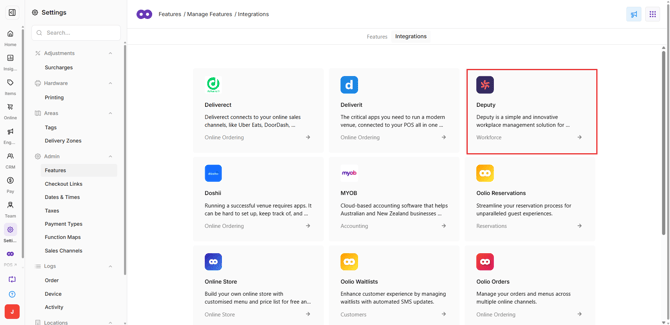
Step 2: Connect Deputy
- Log in using the required Deputy credentials.
- Select the required business from the dropdown.
- Confirm the correct Deputy account and business are selected.
- Select Allow Access.
After access is approved, Oolio One Back Office reopens.
Step 3: Map Stores to Deputy Locations
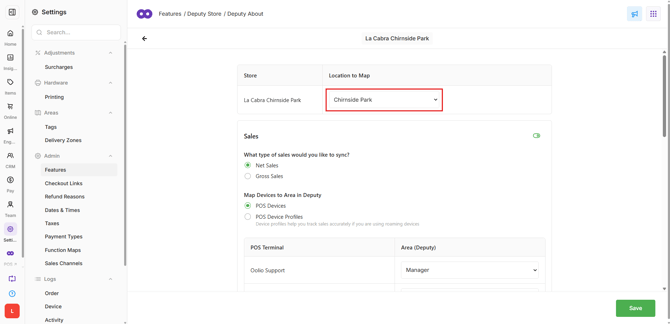
Connect each Oolio One Store to the corresponding Location in Deputy.
- Select the Settings tab.
- Find the required Oolio One Store.
- Select the corresponding Deputy Location from the dropdown.
- Select the Cog icon to configure the integration.
Repeat for each Store that needs to use the Deputy integration.
Step 4: Configure sales syncing
Enable New Order → Create Sale to send completed sales from Oolio One to Deputy.
When enabled:
- Completed order sales are sent to Deputy.
- Each POS terminal must be mapped to the corresponding Deputy Area.
- Available Areas are retrieved from Deputy.
Map each required POS terminal to its corresponding Deputy Area.
Step 5: Configure user syncing
Enable New User → Add Team Member to create Deputy Team Members from Oolio One users.
When enabled:
- New users can be created in Deputy when they are assigned to a Store in Oolio One.
- If the user's email address already exists in Deputy, another user is not created.
- If the email address does not already exist, a new Deputy user is created.
To send existing Oolio One users to Deputy, select Run Now.
Important: The email address is used to identify whether a corresponding user already exists in Deputy.
Step 6: Configure timesheet syncing
Enable Timesheet → Sync Timesheets to send clock-in and clock-out activity from Oolio One to Deputy.
The information synced includes:
- Clock-in time
- Breaks
- Clock-out time
Timesheet information is created in Deputy from attendance activity recorded in Oolio One.
Important: When this option is enabled, use Oolio One as the source for clock-in and clock-out records sent to Deputy. Recording the same attendance activity separately in Deputy may result in duplicate records.
[Screenshot Placeholder: Deputy configuration screen showing New Order → Create Sale, New User → Add Team Member, and Timesheet → Sync Timesheets.]
Once the integration is enabled and configured, sales information begins syncing from that point forward.
Note: Historical sales are not automatically imported as part of the initial connection. Contact Oolio Support if historical sales information needs to be sent to Deputy