
The OOLIO Platform provides an integrated online store that seamlessly connects with a POS account. This store supports both dine-in and pick-up orders, with all transactions flowing directly to the POS system for easy management. This article outlines the steps for configuring the online store settings to achieve optimal performance.
Accessing the Online Store Settings
To activate the online store, navigate to the OOLIO Back Office. From the Menus down the left hand side, scroll down to Settings. Click on Features.
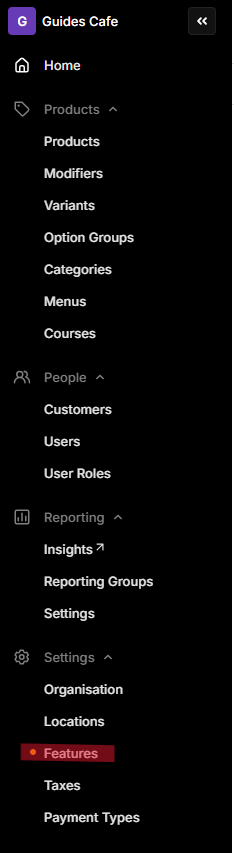
- This screen has two tabs along the top, Features and Integrations. Click Integrations.

- From the Integration App choices, select Oolio Orders. This opens the About page for the Oolio Orders App, which explains what the app is and what it is used for, which is to easily manage your online menus, including any delivery services you may want to use. For now, click Enable.

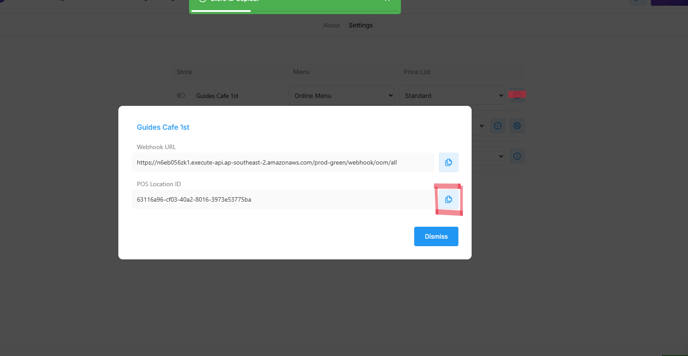
- Enabling Orders will immediately open the Settings tab, and this screen will show the stores available for activation. At first, your store will be toggled off. Click the small i icon to the right of your store, then click the Copy icon next to POS Location ID from the pop-up information window. Click Dismiss.
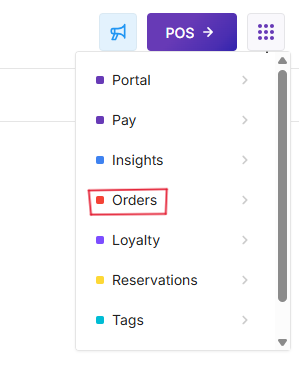
- Now, click the 9-dot grid in the upper right hand corner, and from the drop-down menu, click Orders. This will launch a new browser tab, opening the Orders app.
- In the newly opened Orders app, click on Locations from the menu on the left hand side. You will see your store's name, or the list of stores available to you. Click the name of the store you want to connect to online orders.
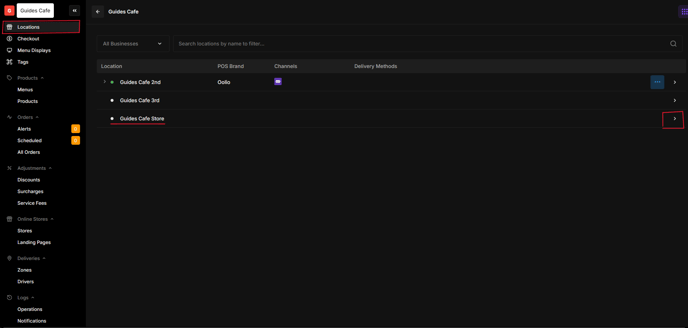
- Clicking the arrow for the store you want activated will open the Details menu for that store. The menu will display the Name of the store, Phone number and Address, and have a drop down menu to choose the POS brand. Choose the relevant POS brand, and in the space for POS Location ID, paste the ID that you copied before.
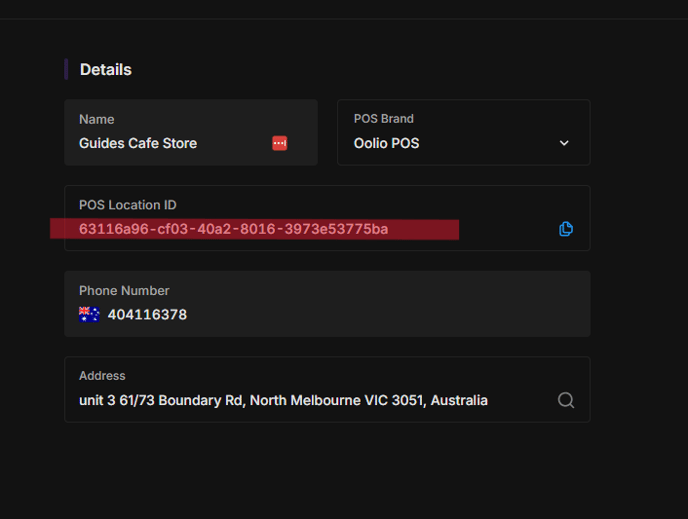
- Click the green Connect button on the lower right.
- You can now click back to the Locations screen. There should be a green dot next to your store, indicating it has been activated. Now click the three dots next to the arrow, and click Add Channel from the options.

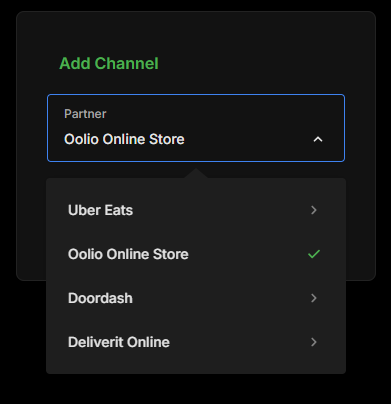
- Choose Oolio Online Store from the options, and click Confirm.
- Navigate back to the browser tab with Back Office.
You are now ready to Create your Online Menu.