
Printer Profiles in Oolio One Back Office determine where products are sent for preparation. Printer Profiles are assigned to products and can be used to route different products to the appropriate printer or Kitchen Display Screen (KDS), such as sending food to the Kitchen and drinks to the Bar.
Additional settings can be used to control how products are sorted, grouped and displayed on preparation dockets. These settings are optional and only need to be configured where required.
Step 1: Create a Printer Profile
- In Oolio One Back Office, open Settings > Printing > Printer Profiles.
- Select Create.
- Enter a Name for the Printer Profile, such as Kitchen, Bar or Pizza.
- Select the Order Types that should use the Printer Profile.
- Enable Combine identical items into one if identical products should appear as a single line with the total quantity.
- Save the Printer Profile.
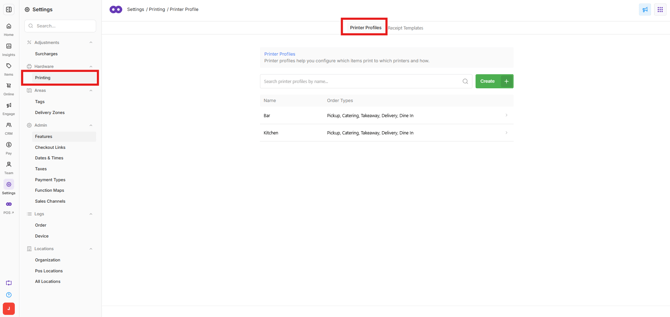
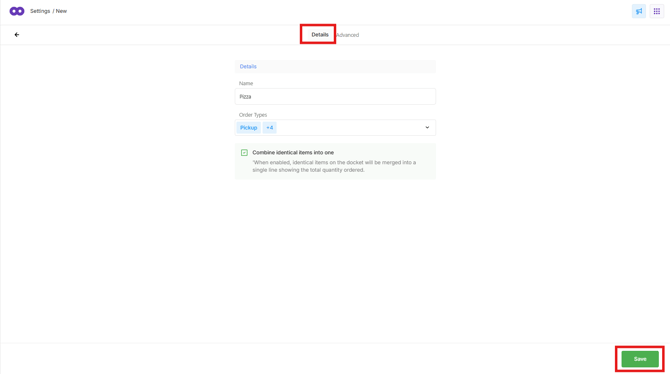 The Printer Profile can now be assigned to products to determine where they are sent for preparation.
Note: The remaining settings are optional. Configure them only when additional control over the sorting, grouping or presentation of preparation dockets is required.
Configure sorting
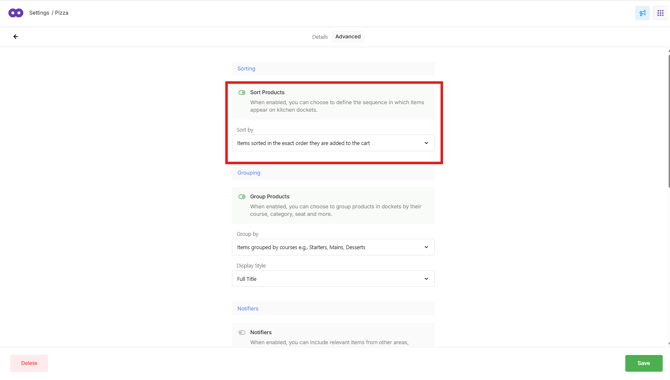
By default, products are displayed in the order they are added to the cart. Configure Sorting to use a different sequence.
Select the Advanced tab and enable Sort Products, then choose:
- The exact order they are added to the cart: Displays products in the order they were added to the cart.
- Seat number: Sorts products according to their assigned seat number.
- Menu layout: Sorts products based on the order of pages in the Menu Layout.
Configure grouping
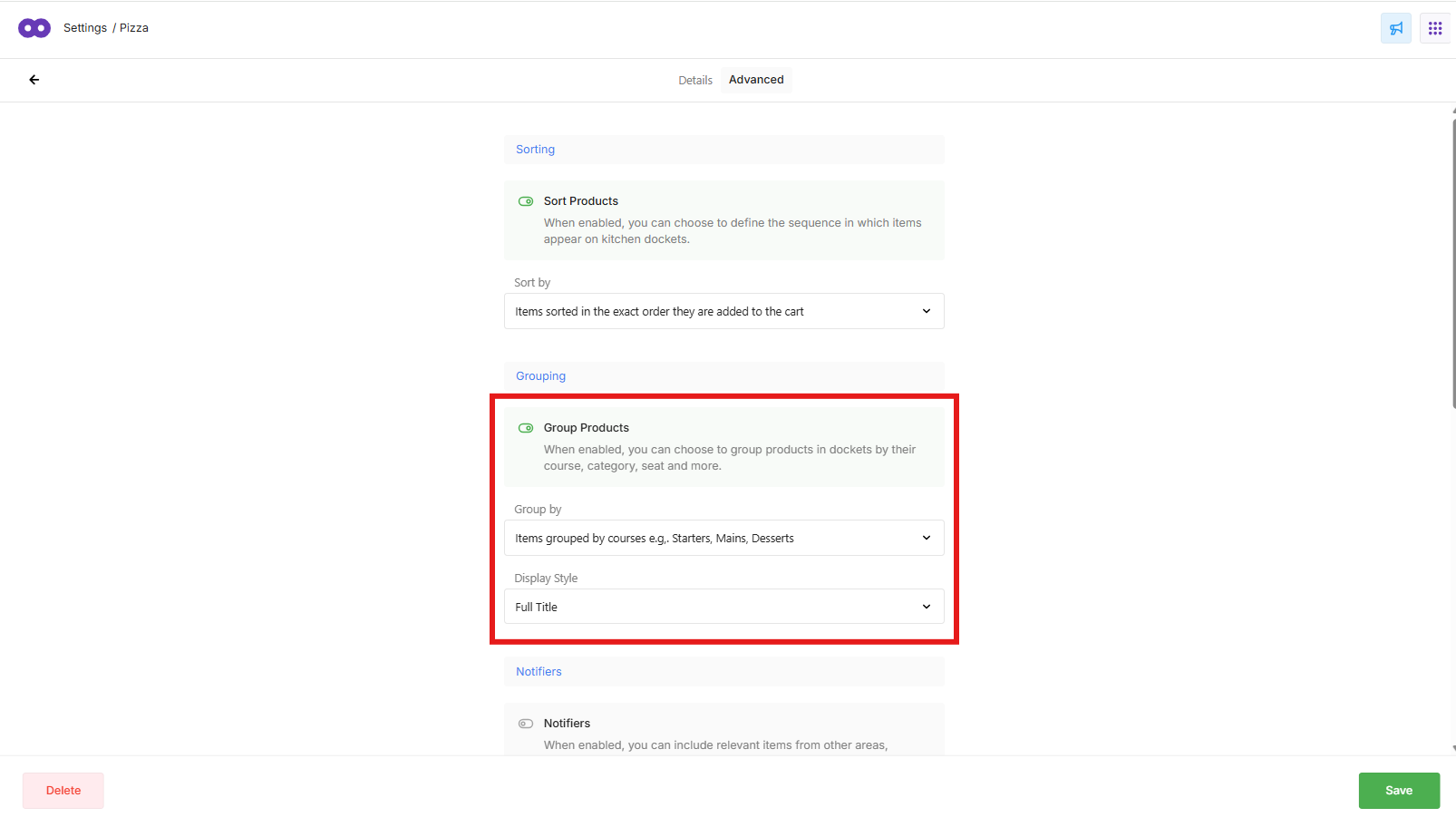
Use Grouping to organise products into sections on the preparation docket.
Enable Group Products, then choose:
- Courses: Groups products by their assigned Course.
- Categories: Groups products by Category.
- Seat Numbers: Groups products by their assigned seat number when ordered.
Select a Display Style to control how each group is identified:
- Full Title: Displays the group name as a heading.
- Separator Only: Separates each group without displaying its title.
-
Hidden: Groups the products without displaying a heading or separator.
Configure Notifiers
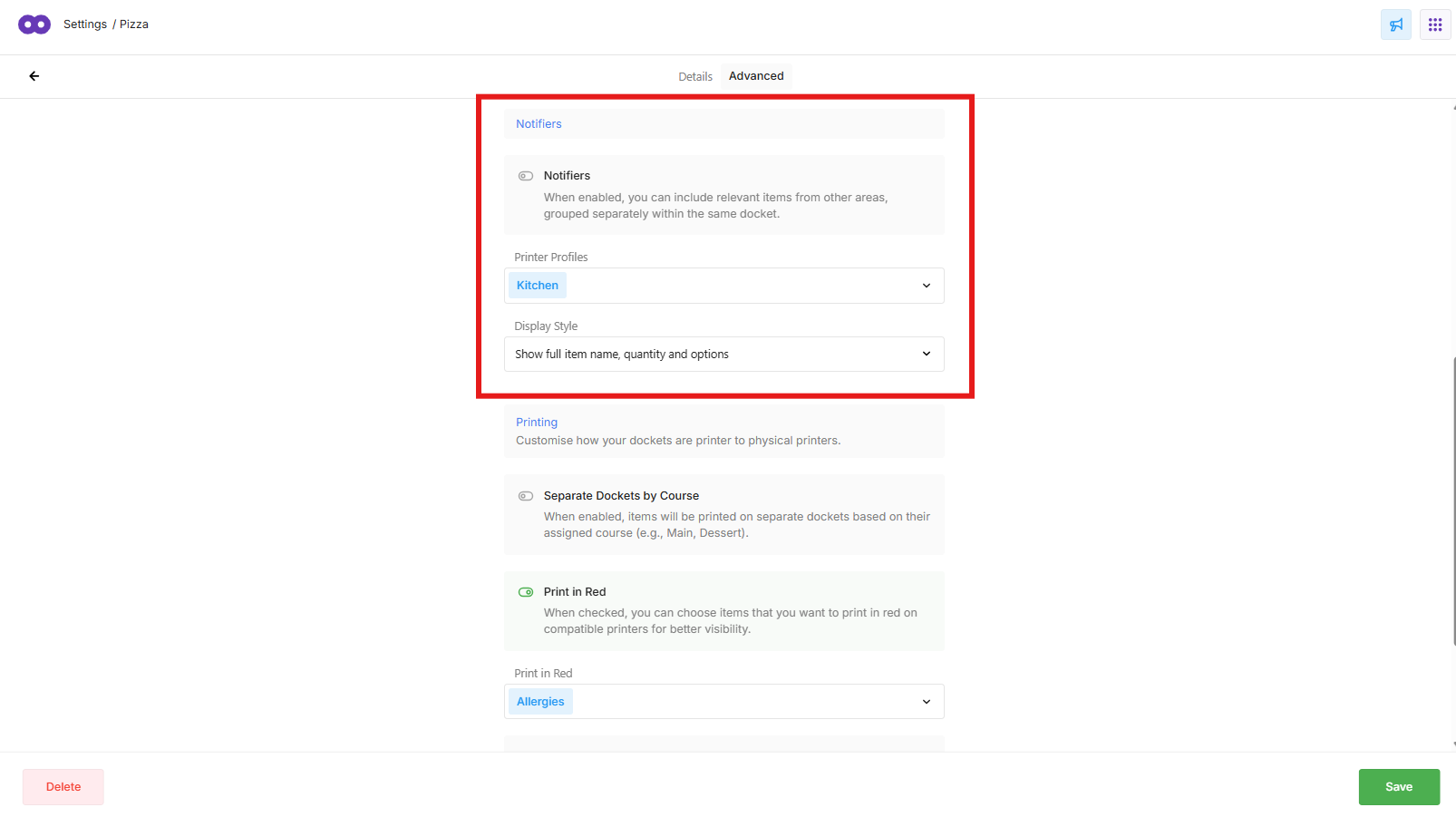
Notifiers add information about products from another Printer Profile to the current docket, so staff can see what else is being prepared for the same order.
For example, a Kitchen docket could show that pizzas from the same order are being prepared at the Pizza station.
- Enable Notifiers.
- Select the other Printer Profiles whose products should be included on the docket. For example, select the Pizza Printer Profile to include Pizza products on the Kitchen docket.
- Select the Display Style:
- Show Full Item Details: Displays the individual products being prepared by the other station.
- Show Summary Only: Displays a summary rather than the individual product details.
- Save the Printer Profile.
The notifier provides visibility of the other products on the order without changing where those products are routed for preparation.
Configure additional printing options
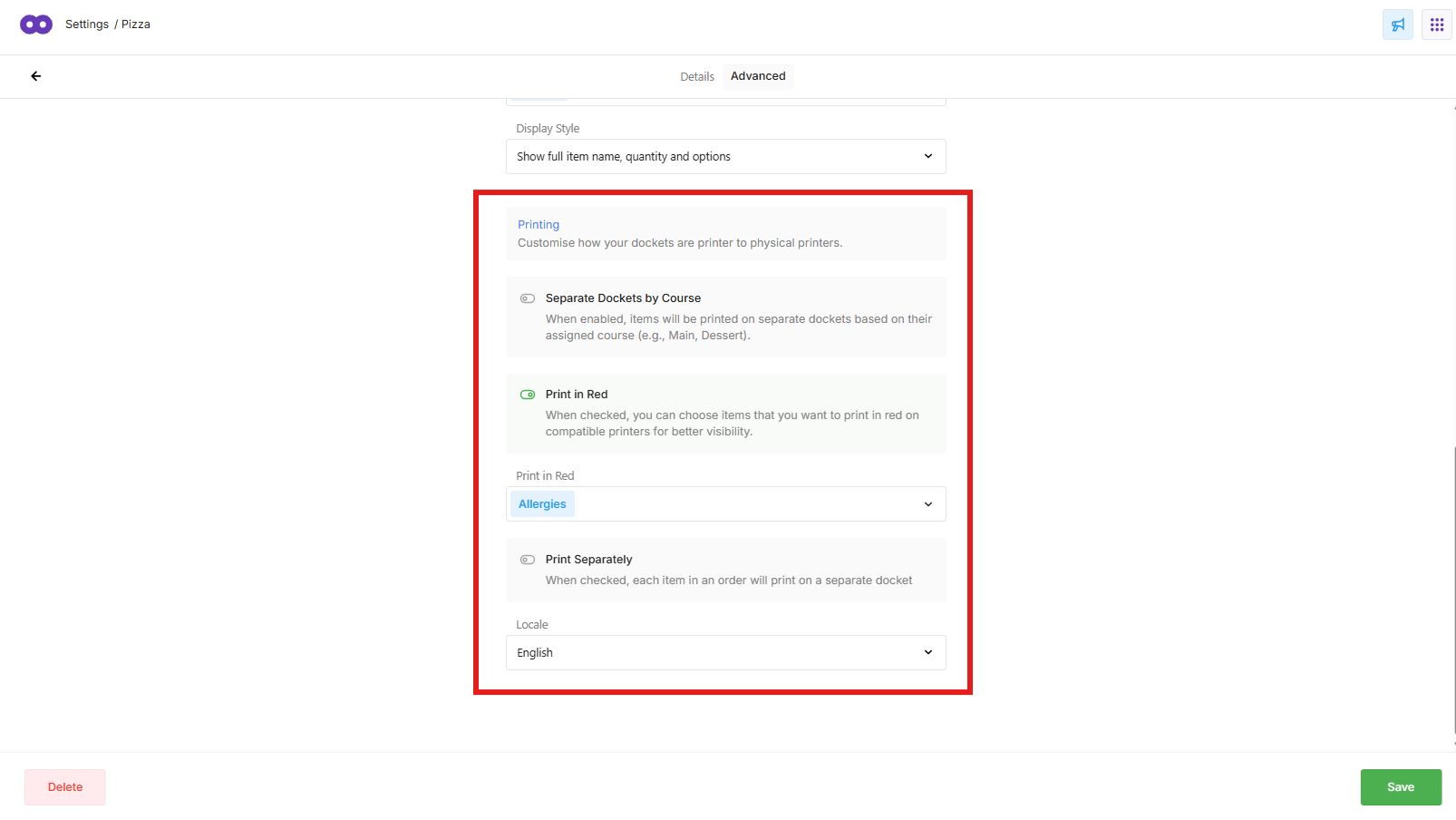
Additional printing settings can be enabled where required:
- Separate Dockets by Course: Prints products on separate preparation dockets according to their assigned Course.
- Print in Red: Prints selected information, such as allergens, in red when using a compatible printer.
- Print Separately: Prints products on separate preparation dockets rather than combining them onto one docket.
- Locale: Select a specific locale for the preparation docket where required.
After making any changes, save the Printer Profile.
Test the Printer Profile
Place a test order containing products assigned to the Printer Profile and confirm:
- Products are sent to the correct printer or KDS.
- Products appear in the expected order.
- Any configured grouping displays correctly.
- Notifiers show the required products from other Printer Profiles.
- Any additional printing options behave as expected.