
Price and weight-embedded barcodes allow Oolio One POS to scan variable-measure products such as meat, cheese and produce that have been weighed and labelled before checkout. The barcode identifies the product and includes either the price or weight, allowing POS to calculate the correct quantity and amount when the barcode is scanned.
These barcodes are commonly generated by weighing scales or label printers and require a matching barcode profile to be configured in Oolio One Back Office.
Before starting
Before configuring embedded barcodes:
- Confirm the scale or label printer supports EAN-13 barcodes.
- Create the products that will use embedded barcodes in Oolio One Back Office.
- Confirm whether the scale will embed the price or weight in the barcode.
- Confirm the barcode structure generated by the scale, including the prefix and the positions of the product reference and embedded value.
Understand price and weight-embedded barcodes
An embedded barcode contains a product reference and a variable value. The variable value can represent either the final price or the measured weight.
Price-embedded barcodes are used when the scale calculates the final selling price. Oolio One POS uses the embedded price as the line price and determines the corresponding quantity from the product's unit price.
For example, if a product is $40.00 per kg and the barcode contains an embedded price of $20.00, POS adds 0.500 kg for $20.00.
Weight-embedded barcodes are used when the scale provides the measured weight. Oolio One POS uses the embedded weight and the product's configured unit price to calculate the final selling price.
For example, if the barcode contains a weight of 2.000 kg and the product is $40.00 per kg, POS calculates a line price of $80.00.
Step 1: Enable Barcode Profiles
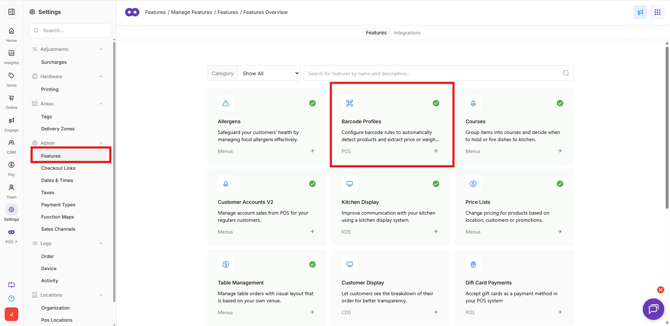
- In Oolio One Back Office, open Settings > Features > Barcode Profiles.
- Enable Barcode Profiles.
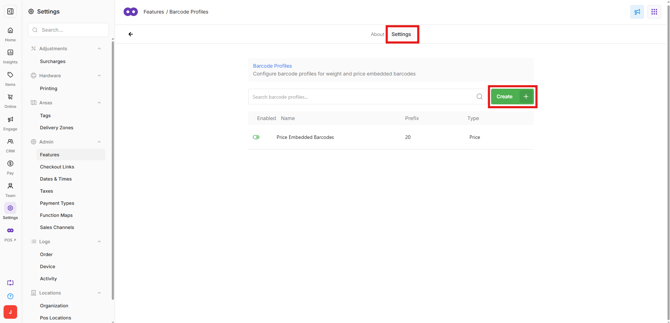
- Open Settings.
- Select Create.
Step 2: Configure the Barcode Profile
Configure the Barcode Profile to match the format generated by the scale or label printer.
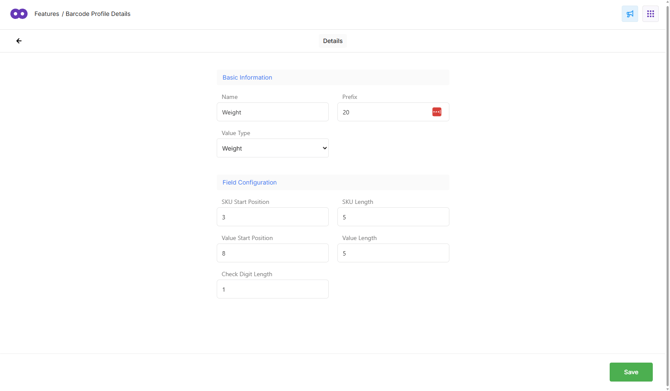
Under Basic Information:
- Enter a Name for the profile.
- Enter the Prefix used by the barcode.
- Select the Value Type:
- Price: The barcode contains the final selling price.
- Weight: The barcode contains the measured weight.
Oolio One automatically interprets an embedded Price as cents and an embedded Weight as grams.
For example:
- A Price value of
02000is interpreted as $20.00. - A Weight value of
02000is interpreted as 2,000 g (2.000 kg).
Under Field Configuration, enter:
- SKU Start Position: The position where the product reference begins within the barcode.
- SKU Length: The number of digits used for the product reference.
- Value Start Position: The position where the embedded price or weight begins.
- Value Length: The number of digits used for the embedded price or weight.
- Check Digit Length: The number of digits used for the barcode check digit.
Select Save.
Important: The Barcode Profile must match the barcode structure generated by the scale or label printer. If the positions or lengths do not match, POS may be unable to identify the product or interpret the embedded value correctly.
Step 3: Configure the scale or label printer
Configure the scale or label printer to generate the same barcode structure configured in the Oolio One Barcode Profile.
A common EAN-13 embedded barcode structure is:
YY CCCCC PPPPP X
Where:
- YY is the prefix.
- CCCCC is the product reference.
- PPPPP is the embedded price or weight.
- X is the check digit generated by the scale or label printer.
Make sure:
- The prefix matches the Prefix in the Barcode Profile.
- The product reference appears in the position defined by SKU Start Position and SKU Length.
- The price or weight appears in the position defined by Value Start Position and Value Length.
- The check digit matches the configured Check Digit Length.
The scale and Oolio One configurations must remain aligned. If the barcode structure is changed on the scale, update the Barcode Profile to match.
Step 4: Configure the product
The product reference configured on the scale or label printer must match the SKU entered against the product in Oolio One.
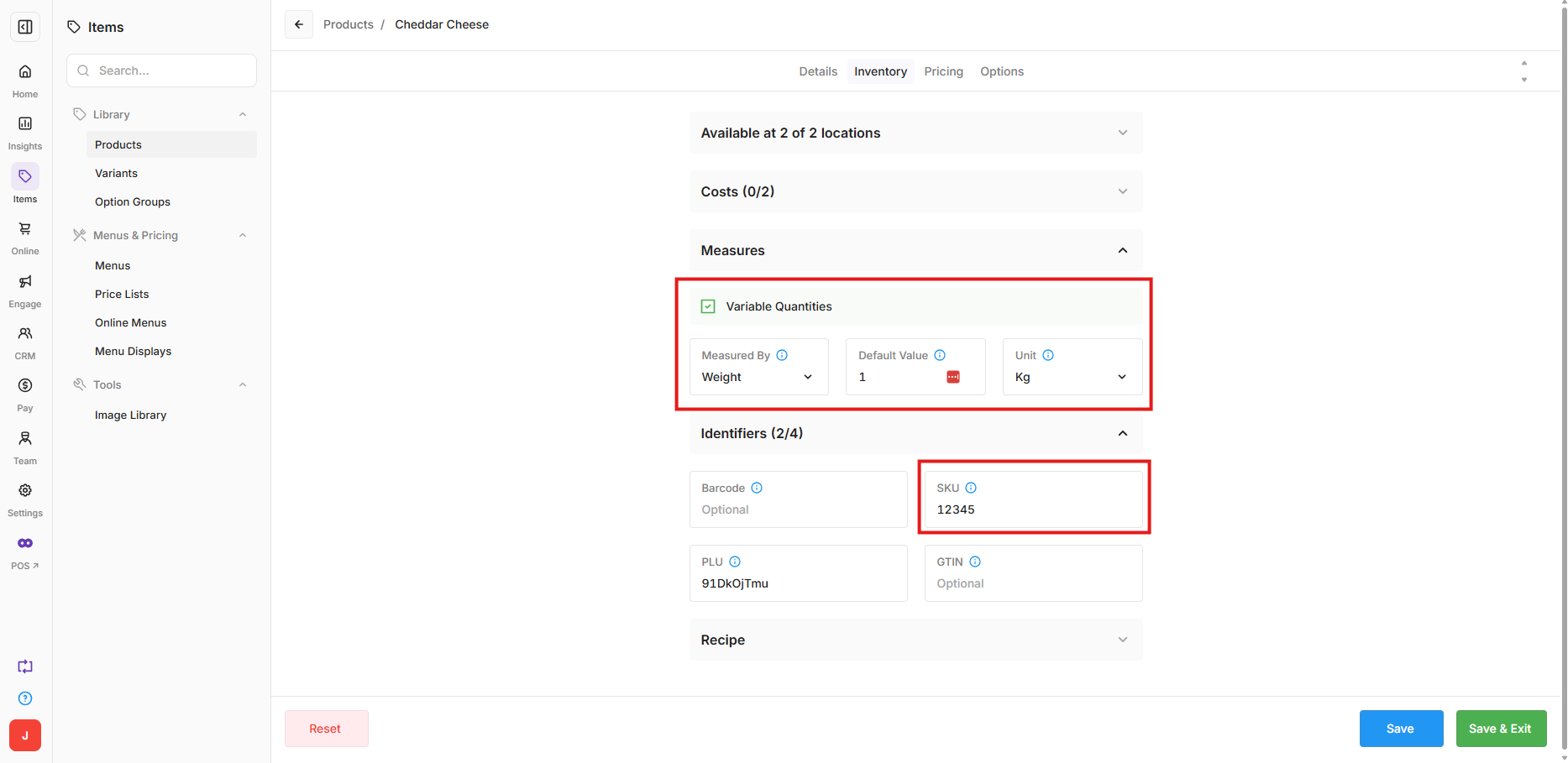
- In Oolio One Back Office, open Items > Products.
- Select the product.
- Open the Inventory tab.
- Under Identifiers, enter the product reference in the SKU field.
- Under Measures, set the product's unit of measure to kg for products sold by weight.
- Save the changes.
Configure the corresponding product on the scale or label printer with the same product reference. For example, if the SKU in Oolio One is 12345, the corresponding product on the scale must also use 12345.
The product reference remains the same each time a label is generated. Only the embedded price or weight changes, so a separate product reference does not need to be created for each label.
Step 5: Configure product pricing
The product's selling price must match the unit price configured on the scale or label printer.
Weight-embedded barcodes:
-
For products sold by weight, configure the product's selling price as the price per 1.000 kg.
-
Oolio One interprets the weight embedded in the barcode as grams and converts it to kilograms before calculating the line price.
-
For example, if a product sells for $24.00 per kg:
- Configure the product price as $24.00 per kg.
- A barcode containing
00500represents 500 g (0.500 kg). - When scanned, Oolio One calculates 0.500 × $24.00 = $12.00.
Price-embedded barcodes:
-
For a price-embedded barcode, the scale calculates the final selling price and includes it in the barcode. Oolio One uses this price together with the product's configured selling price to determine the quantity.
-
For example, if Ribeye Steak sells for $31.00 per kg:
- Configure the product price as $31.00 per kg.
- The scale weighs the product and generates a barcode containing a final price of $15.50.
- When scanned, Oolio One calculates $15.50 ÷ $31.00 = 0.500 kg.
- POS adds 0.500 kg for $15.50 to the order.
Important: The product must have a selling price configured, and it should match the unit price used by the scale. An incorrect price can result in an incorrect calculated quantity.
Step 6: Test the barcode
Print a test label from the scale or label printer and scan it in Oolio One POS.
Confirm:
- The correct product is added to the order.
- The embedded price or weight is interpreted correctly.
- The quantity is correct.
- The calculated line total is correct.
Test different values to make sure the price or weight is being interpreted correctly, and repeat the test on each POS that will be used to scan the labels.