
Use Oolio One Insights to view key sales, shift, transaction and payout information from a compatible mobile device. Insights widgets can also display key business metrics directly on the device Home Screen without opening the app.
Widgets are read-only. Select a widget to open Oolio One Insights for more detailed information.
Before starting
Before installing Oolio One Insights:
- For iOS devices, confirm iOS 16 or later is installed.
- For Android devices, confirm Android 8.0 or later is installed.
- Larger widgets must be activated by Oolio One before they are available.
Widget availability may vary depending on the Oolio One Insights version and the features enabled for the organisation.
Step 1: Install Oolio One Insights
- Open the App Store or Google Play Store.
- Search for Oolio Insights.
- Download and install the app.
Step 2: Sign in and configure Insights
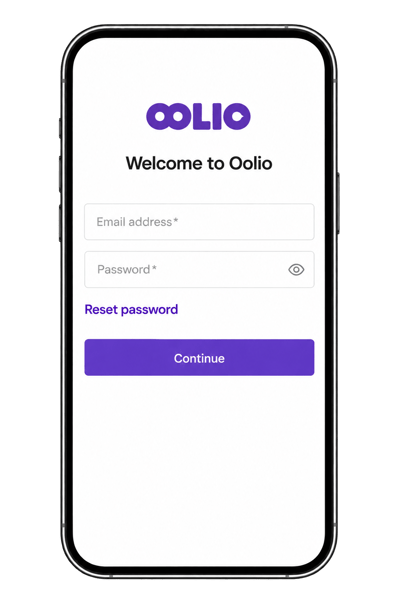
- Open Oolio Insights.
- Select Login.
- Enter the same login details used to access Oolio One Back Office.
- Select Continue.
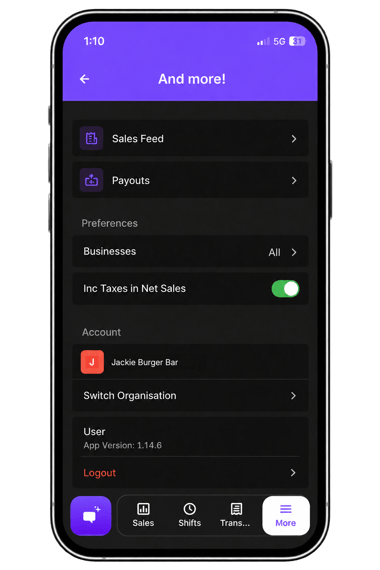
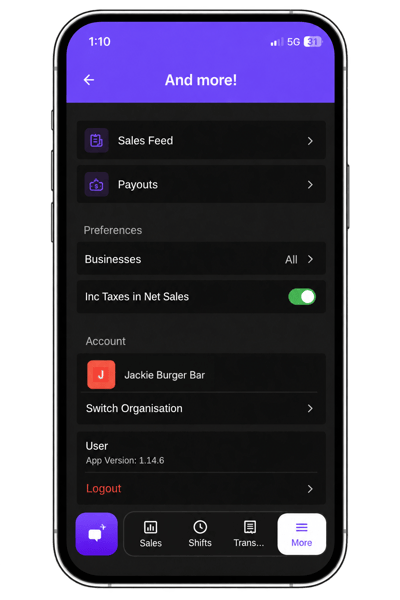
- Open the More menu.
- For multiple Locations or organisations, select the required Organisation and Business (Location).
One, multiple or all available Locations can be selected.
- Choose how Net Sales are displayed:
- Turn on Inc Taxes to include tax.
- Turn off Inc Taxes to display sales excluding tax.
Step 3: View Insights
Use the tabs within Oolio Insights to view different business information.
Sales:
-
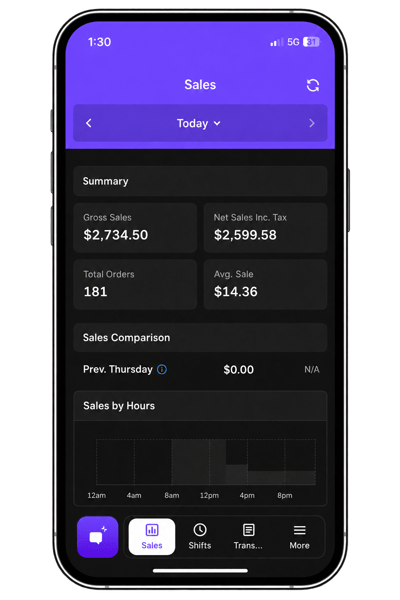
The Sales tab provides sales information for Today or a previous date.
-
Available information includes:
- Summary: Gross Sales, Net Sales Inc Tax, Total Orders and Average Sale value.
- Sales Comparison: Compares sales with the same day of the previous week.
- Current Trading Week: Shows sales for each day of the current trading week.
- Order Types: Breaks down sales by Order Type, such as Dine In and Takeaway.
- Top Products: Shows the top-selling Products for the selected day.
- Top Reporting Groups: Shows the highest-performing Reporting Groups.
Shifts:
-
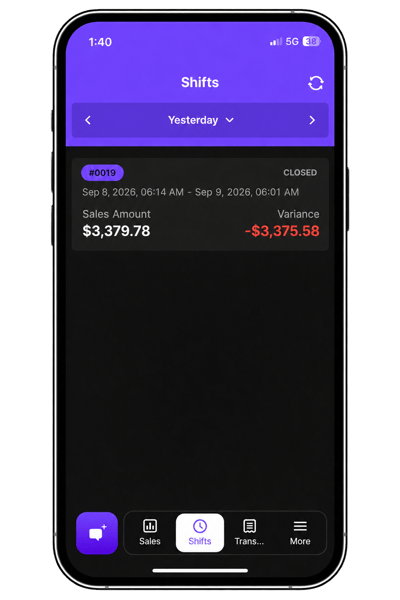
Use the Shifts tab to review Shifts from yesterday or a previous date.
-
The Shifts view includes:
- Sales
- Variance
-
Select a Shift to open the full Shift Report and scroll to review the available details.
Transactions:
-
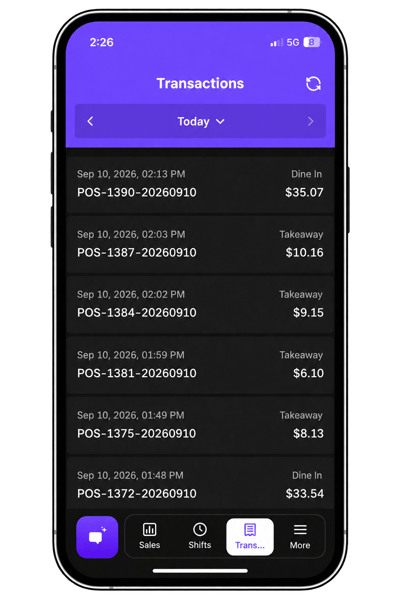
The Transactions tab displays a list of Transactions for the selected date.
More:
-
The More tab provides access to additional information and settings.
Sales Feed:
-
Sales Feed displays a list of transactions for the selected date.
Payouts:
-
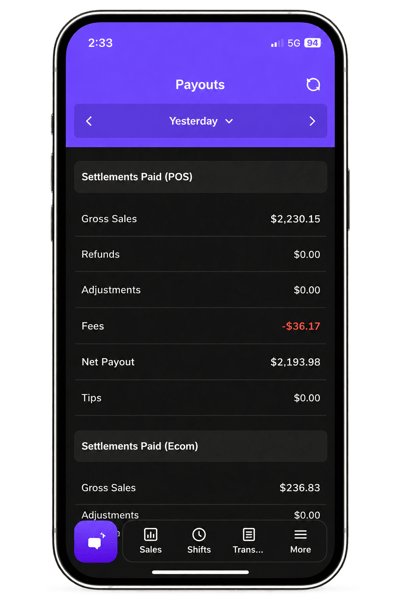
Use Payouts to review Oolio Pay settlement information for the current day or a previous date.
-
Available information includes:
- Settlement details for POS transactions
- Settlement details for ECOM transactions
- Pending Settlements
- Net payout by Sales Channel
- Payout History for the previous seven days
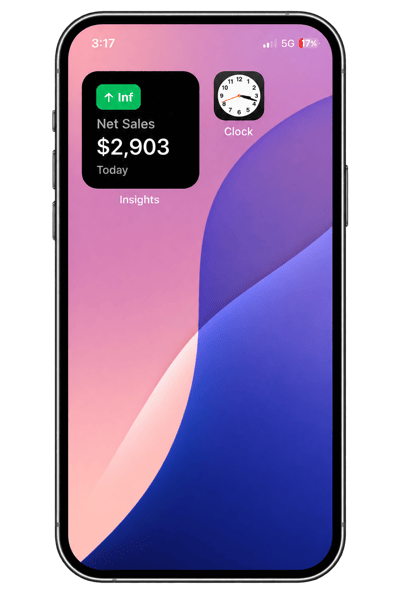
Step 4: Add an Insights widget on iOS
Add an Insights widget to an iPhone or iPad Home Screen to view key information without opening the app.
- Touch and hold an empty area of the Home Screen until the apps begin to move.
- Select Edit.
- Search for Insights.
- Select Insights.
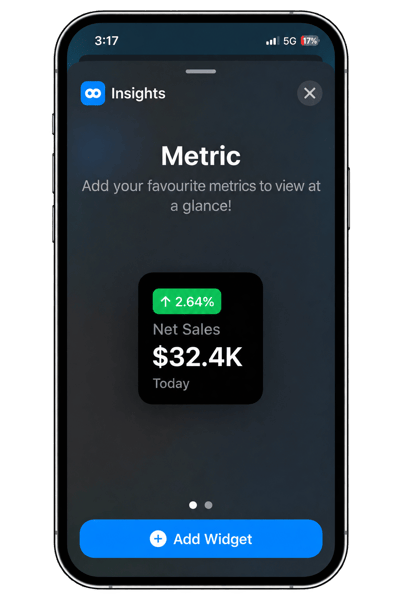
- Swipe through the available widget sizes.
- Select Add Widget for the preferred size.
- Move the widget to the required position on the Home Screen.
- Select Done.
Step 5: Configure an Insights widget
The information displayed on an Insights widget can be customised.
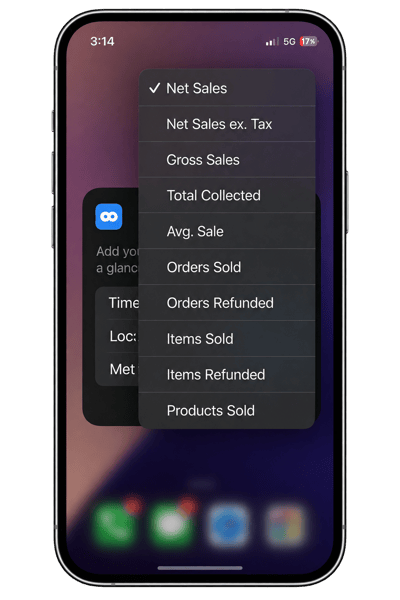
Press and hold the widget, then select Edit Widget.
Metric Widget:
-
Configure:
- Time Period
- Locations
- Metric
Top Metrics Widget
-
Configure:
- Time Period
- Locations
- Top Metric Type
- Ranked By
Different widgets can be configured to display different available Locations and metrics.
For more detailed or current information, select the widget to open Oolio One Insights.