
A Customer Display Screen (CDS) gives customers a clear view of their order as it is entered in Oolio One POS, helping them check their order before the transaction is completed. The CDS can display the current cart and payment information and provide supported digital receipt options.
Before starting
Make sure the following are ready before setting up the Customer Display Screen:
- The customer-facing device is installed and connected to the network.
- The Oolio CDS app is available on the customer-facing device, or the device has access to a supported web browser.
- Any logo, images or GIFs required for the Customer Display Screen are ready to upload.
Step 1: Enable Customer Display
- In Oolio One Back Office, open Settings > Features > Customer Display.
- Select Enable.
- Select Update.
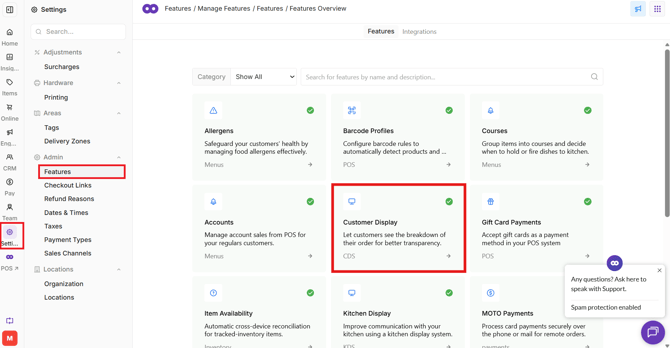
The Customer Display is now enabled.
Step 2: Configure the Customer Display appearance
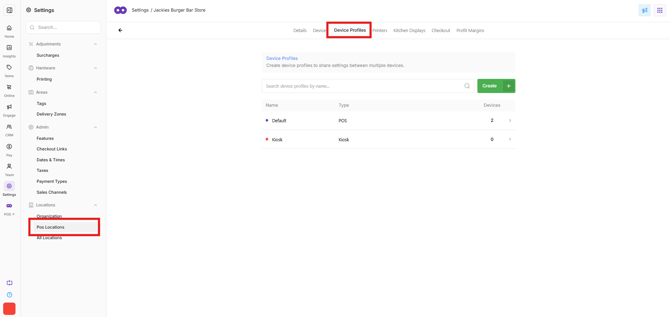
The appearance of the Customer Display is configured against the Device Profile used by the POS terminal.
- In Oolio One Back Office, open Settings > Locations and select the Store where the Customer Display Screen will be used.
- Open Device Profiles and select the Device Profile used by the required POS terminal.
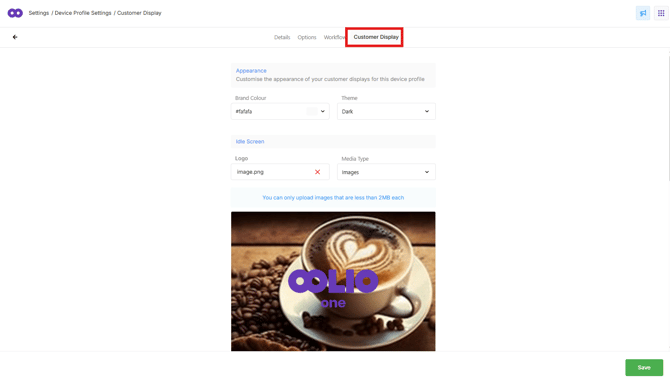
- Open the Customer Display tab.
- Select the Brand Colour.
- Select the Dark or Light theme. This changes how the cart area is displayed.
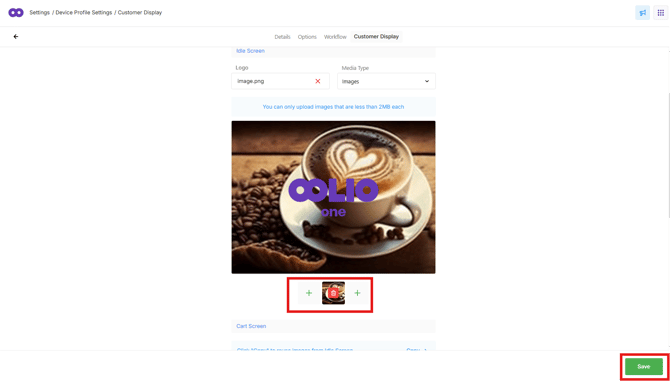
Idle Screen:
-
The Idle Screen is displayed when there is no active order on the POS.
-
Configure the content displayed on the Idle Screen:
- Upload the required Logo.
- Select the Media Type, such as image or GIF.
- Upload the required image or GIF.
- Add up to three additional images if required.
Cart Screen:
-
The Cart Screen is displayed while an order is being entered on the POS.
-
Configure the content displayed on the Cart Screen:
- Upload the required Logo.
- Select the Media Type, such as image or GIF.
- Upload the required image or GIF.
- Add up to three additional images if required.
Select Save.
Step 3: Connect and authenticate the Customer Display Screen
Open Customer Display directly on the device that will be used as the customer-facing screen.
Use either:
- The Oolio CDS app, available from the Google Play Store or Apple App Store.
- A supported web browser by opening cds.oolio.io.
A QR code is displayed when Customer Display is opened and ready to be connected.
Note: The app or browser must be opened on the Customer Display Screen device to complete the connection successfully.
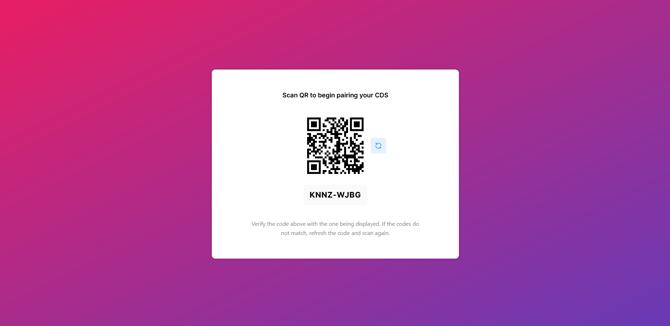
Use a mobile device with a camera to authenticate the Customer Display Screen.
- Scan the QR code displayed on the Customer Display Screen using the mobile device.
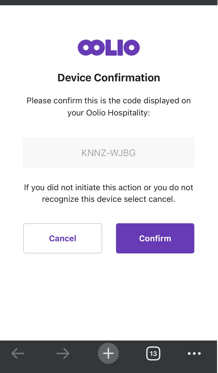
- Open the auth.oolio.io link when prompted.
- Compare the eight-digit code displayed on the mobile device with the code shown on the Customer Display Screen.
- If the codes match, confirm the connection.
- Wait for the confirmation message to appear on the mobile device.
- Return to the Customer Display Screen.
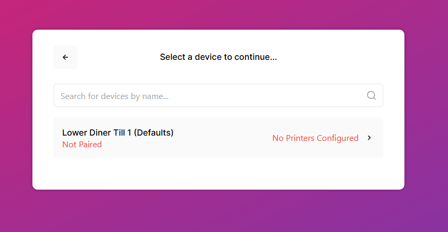
- Select the required Device.
- Select the required Location.
- Select the POS terminal that will use the Customer Display Screen.
Once connected, the Customer Display Screen is linked to the selected POS terminal and loads the configuration and branding associated with its Device Profile.
Select the POS terminal
Once paired, the Customer Display Screen is linked to that specific POS terminal. All branding and images will display.
Step 5: Confirm the Customer Display is ready
-
Once configuration and pairing are complete, the Customer Display automatically responds to activity on its paired POS.
-
When there is no active order, the Customer Display shows the configured idle screen, including the logo and background configured for the Device Profile.

-
As an order is entered on the POS, the Customer Display shows the current cart so the customer can review the order as it is being created.
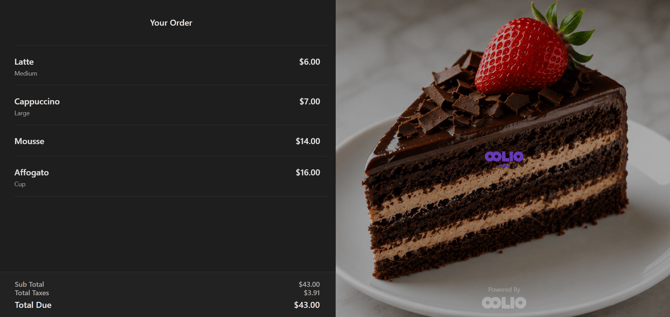
-
During supported payment flows, the screen can also display payment information such as the amount paid and change due.
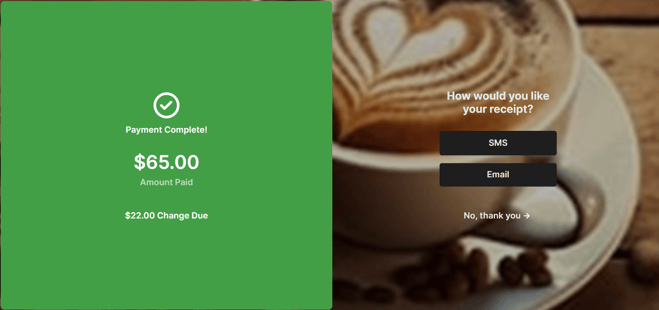
After the transaction is completed, the Customer Display returns to the configured idle screen.