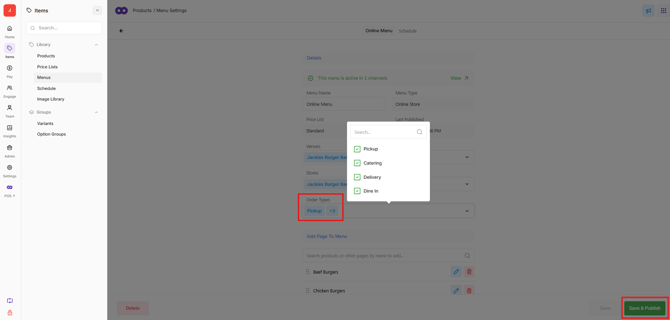
Catering is a dedicated order type in Oolio One's Online Store for large, pre-scheduled orders. Customers can select a future date and time, choose pickup or delivery, and order from a menu configured for Catering.
Catering settings control how far in advance customers can order, the available fulfillment hours, minimum order value, and when scheduled orders are sent to the POS.
Before starting
Before enabling Catering:
- Create an 🔗 Oolio Online Store
- Enable at least one other order type, such as Pickup or Delivery.
- Have an Online Menu available to publish to the Catering order type.
Important: Catering cannot be the only active order type for an Online Store.
Step 1: Enable Catering
Open Online > Online Stores > Stores > Fulfillment Tab.
- Enable the Catering order type.
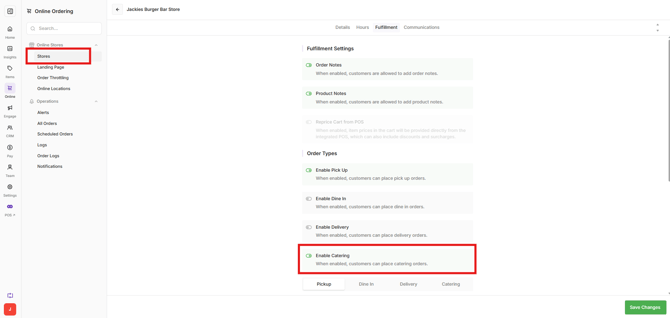
Step 2: Configure Catering settings
Open Online > Online Stores > Stores > Fulfillment
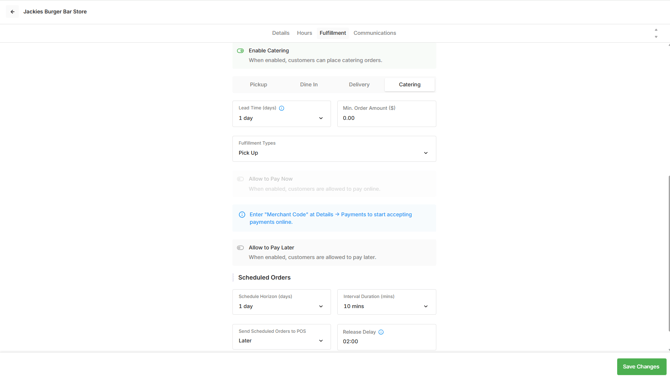
Configure the rules that determine how far ahead customers can place Catering orders and when those orders are sent to the POS. Select the Catering fulfillment type:
- Lead Time (days): Sets the minimum number of days in advance that a catering order must be placed. For example, a Lead Time of 3 prevents customers from selecting a fulfillment date fewer than three days away.
- Min. Order Amount ($): Sets the minimum cart value required to complete checkout. This amount is calculated after discounts and surcharges.
- Fulfillment Types: Select Pickup, Delivery, or both.
- Allow to Pay Now: Enable if customers can pay online
- Allow to Pay Later: Enable if customers can order online but pay in store
- Schedule Horizon: The maximum number of days in advance that a customer can place a Catering order.
- Interval Duration: Determines the increments between the fulfillment times displayed to customers, such as every 30 minutes.
- Send Scheduled Orders to POS: Determines when a scheduled order is released to the POS.
- Immediately: Sends the order to the POS as soon as the customer places it.
- Later: Sends the order to the POS based on the configured Release Delay.
- Release Delay: Determines how many minutes before the scheduled order time the order is sent to the POS. For example, with a 60-minute Release Delay, an order scheduled for 7:00 pm is sent to the POS at 6:00 pm.
Note: Using Later prevents future Catering orders from appearing on the KDS, printers, and Scheduled Orders tab until the configured release time.
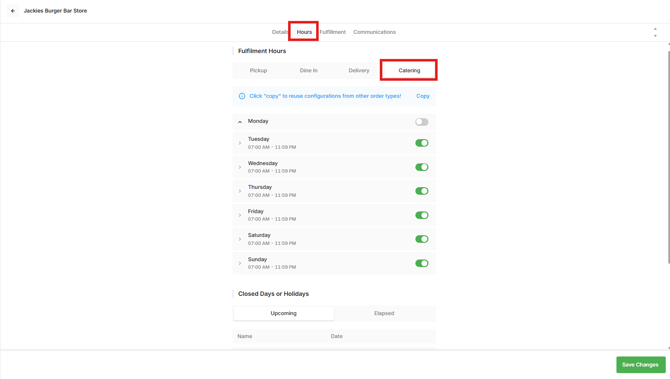
Step 3: Set Catering hours
Open Online Stores > Admin > Stores > Hours.
Catering hours determine the days and times customers can select for fulfillment. Multiple time periods can be configured for the same day. Select the Catering Fulfillment type.
For each required day:
- Add opening and closing times for each day.
- Add multiple service periods if required by selecting the green +
- Use the toggle to mark whole days as closed.
One-off closed days can also be configured for dates when Catering is unavailable, such as a public holiday that would otherwise fall on a normal trading day.
Step 4: Set up Catering order alerts
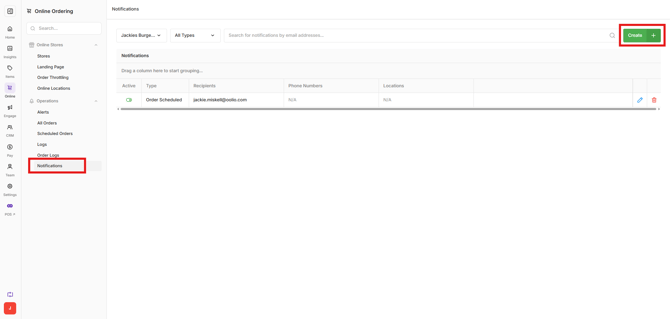
Order alerts can notify staff when a Catering order is placed, even when the order is configured to be sent to the POS later.
Open Admin > Operations > Notifications.
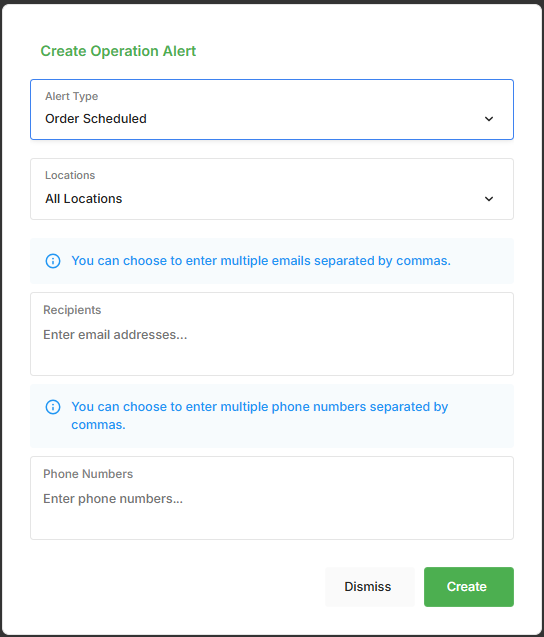
- Select Create.
- Set Alert Type to Order Scheduled.
- Select the applicable Locations.
- Enter the email addresses that should receive the alert.
- If SMS is enabled for the location, enter the required mobile numbers.
The notification is sent when the scheduled order is placed, regardless of when the order is released to the POS.
Important: SMS charges may apply.
Step 6: Publish a menu to Catering
A menu must be published to the Catering order type before customers can browse products and place Catering orders.
Open Home > Menus.
- Create a new menu or open an existing Online Menu.
- Ensure Catering is selected as an order type.
- Confirm the required pages and products are included.
- Select Save and Publish.
Important: If a menu is not published to the Catering order type, customers can still see the Catering tab in the Online Store, but it displays Unavailable and they cannot browse or order Catering products.