
Allergens can be added to products in Oolio One Back Office to record important allergen information. In Oolio One POS, the Allergen Warnings feature allows staff to filter for selected allergens, highlights products containing those allergens and displays a warning when one is selected.
Allergen information can also be displayed with products in the Oolio Online Store, helping customers view relevant allergen information when ordering online.
Step 1: Enable Allergens
- Open Back Office > Settings > Features > Allergens.
- Select Enable.
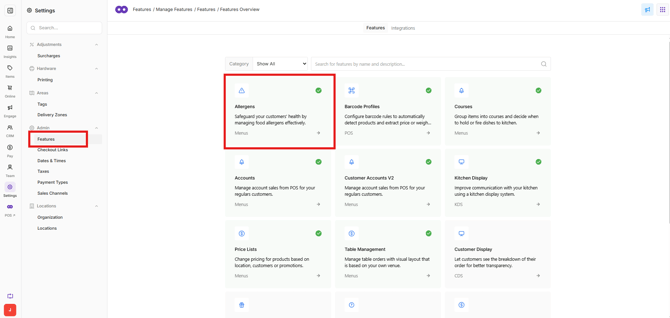
The Allergens setting is now available when configuring products.
Step 2: Add allergens to products
Add the relevant allergens to each product that requires allergen information.
- Open Back Office > Items > Library > Products.
- Select the required product.
- In the Details tab, find Dietary & Nutritional Information > Allergens.
- Add all relevant allergens for the product.
- Save the changes.
- Repeat for other products as required.
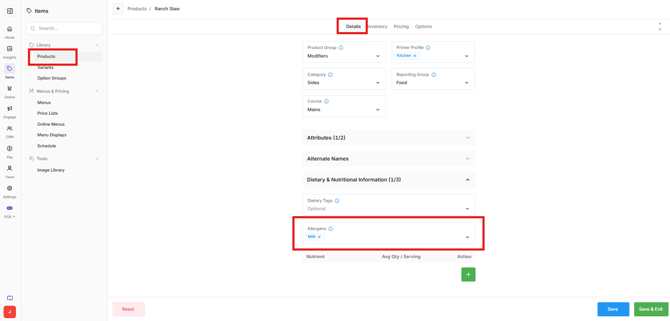
Important: Only add allergen information that has been confirmed for the product.
Step 3: Enable Allergen Warnings for a Device Profile
To use allergen filtering and warnings in POS, enable Allergens on each Device Profile where the functionality is required.
- Open Back Office > Settings > Locations.
- Select the required Store.
- Select Device Profiles and into the required Device Profile.
- Open Options.
- Enable Enable Allergens.
Repeat for any other Device Profiles that require Allergen Warnings.
Important: Sync the POS after returning to the device so the updated configuration is applied.
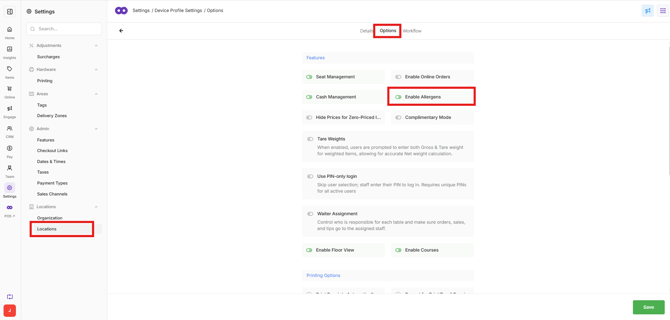
Step 4: Check allergens in POS
Staff can use the allergen filter in Oolio One POS to identify products containing specific allergens while taking an order.
- Select the filter icon at the top of the cart.
- Select the allergens to check and select Apply Filters.
- Products containing any of the selected allergens are highlighted in orange and display an allergen warning.
- Select a highlighted product.
- An allergen warning appears advising that the product contains the selected allergen.
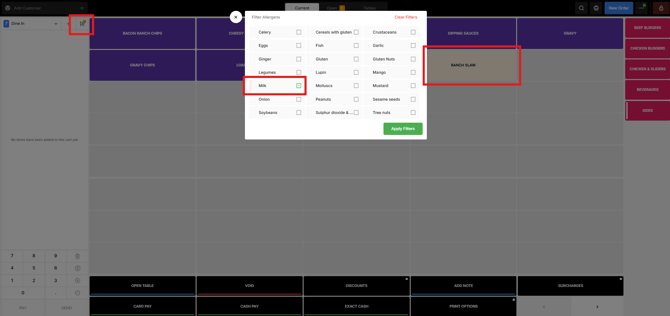
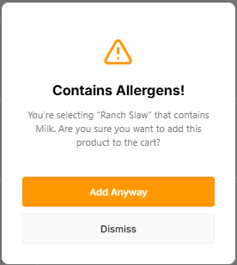
Important: Allergen Warnings provide staff with the allergen information configured against the product. They do not determine whether a product is safe for a customer with a particular allergy.
View allergens in the Online Store
Allergen information added to products is also available to customers ordering through the Oolio Online Store.
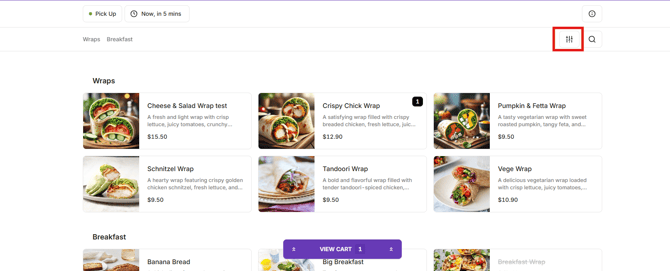
Customers can use the allergen filter on the ordering page to exclude products containing specific allergens:
- Open the allergen filter on the ordering page.
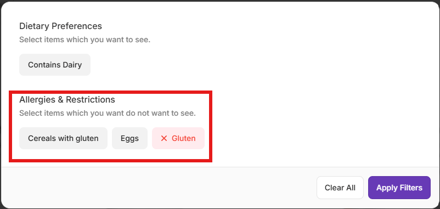
- Select the allergens to avoid.
- Products containing any of the selected allergens are hidden from the menu.
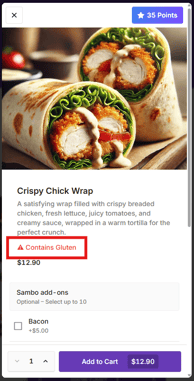
When a customer selects a product, its configured allergens are also displayed in red on the product details screen.
This allows customers to filter the menu based on allergens they want to avoid and review the allergen information associated with an individual product before ordering.
Important: The allergen filter and warnings rely on the allergen information configured against each product. Only add allergen information that has been confirmed for the product.