
Closing a Shift in Oolio One POS completes the end-of-day reconciliation process, sometimes referred to as cashing up. This allows the recorded takings to be compared with the actual amounts received and helps identify any differences before the Shift is closed.
Before closing a Shift, review any open orders and confirm the takings for each payment type.
Step 1: Open the Shifts screen
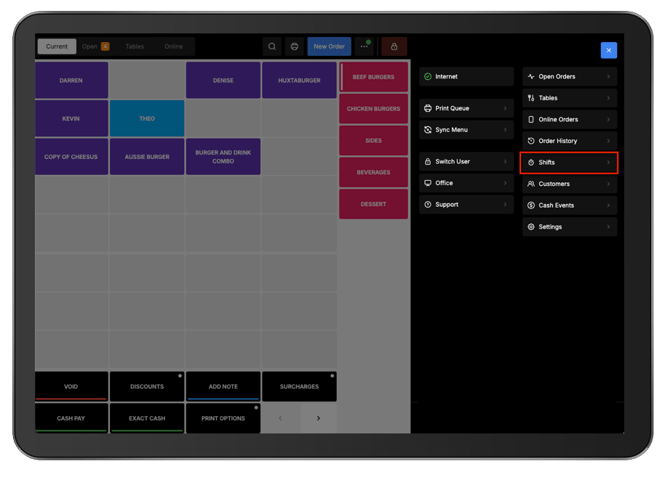
- Select the navigation menu icon in the upper-right corner of the POS.
- Open Shifts.
 Step 2: Review the Active Shift
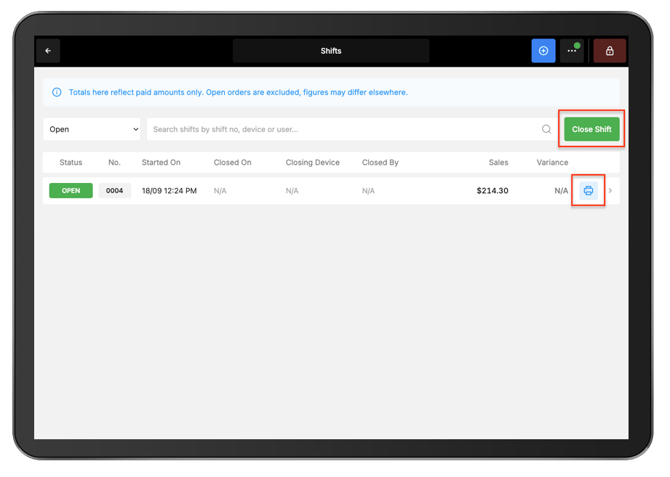
Before closing, review the totals recorded against the Active Shift.
The Shift Summary can be reviewed in either of the following ways:
- Select the print icon to print a Shift Summary docket.
- Select the Shift to display the Shift Summary on screen.
After reviewing the Shift Summary, select Close Shift.
 Step 3: Check for open orders
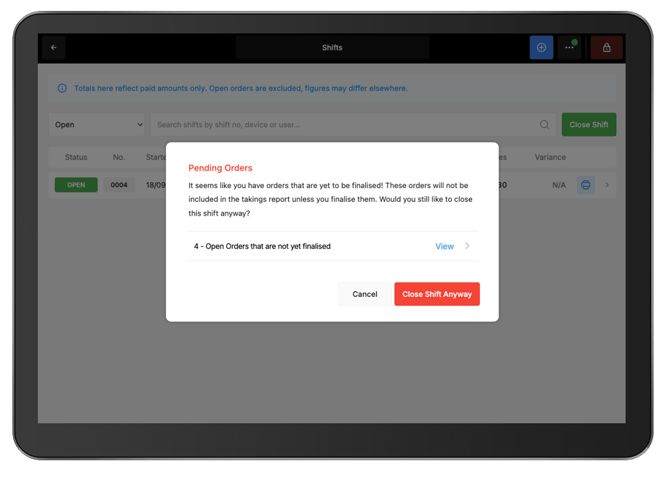
If orders or tables are still open, a warning appears after selecting Close Shift.
Finalise any remaining orders before continuing to ensure they are included in the Shift reporting for that trading day.
Important: A Shift can be closed while orders remain open. However, sales from those open orders will not be included in the Shift report for that trading day.
 Step 4: Enter the takings
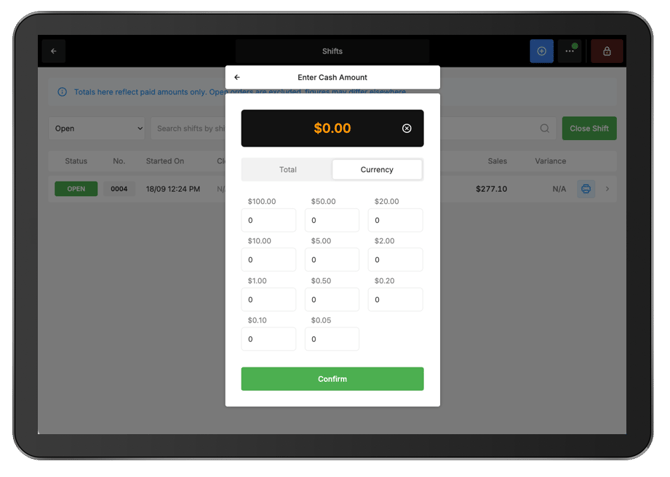
Enter the actual takings for each applicable payment type.
Integrated payment types, such as card or online payments, are automatically populated by the system.
Note: The expected cash amount includes any Money In and Money Out events recorded during the Shift.
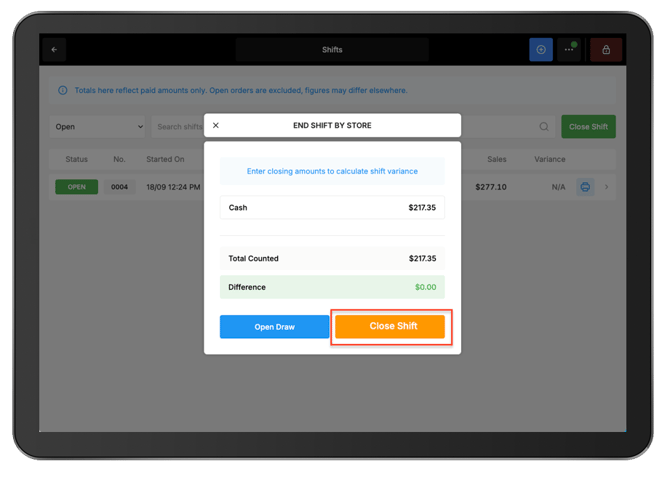
 Step 5: Review the Difference and close the Shift
After entering all required takings, review the Difference.
When the recorded takings match the expected amounts, the Difference displays $0.00.
Select Close Shift to complete the Shift.
The Shift is now closed and the reconciliation is complete.