
Clocking in and out on Oolio One POS records when staff start and finish work. Breaks can also be recorded during a shift, with working hours and break times available for review in the Time & Attendance report in Back Office.
Step 1: Clock in
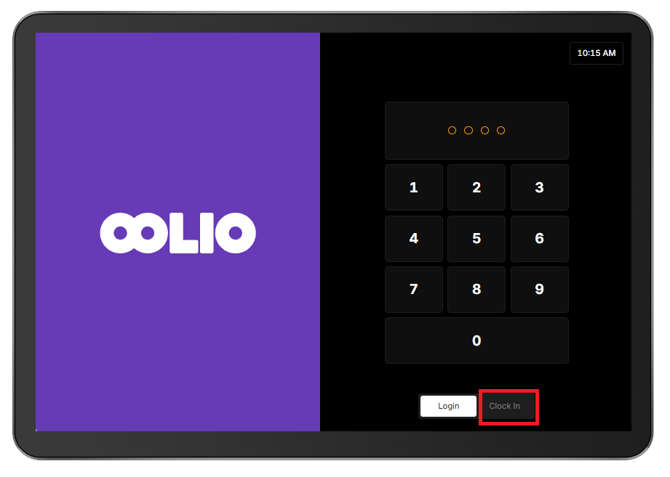
- From the Login screen, select Clock In
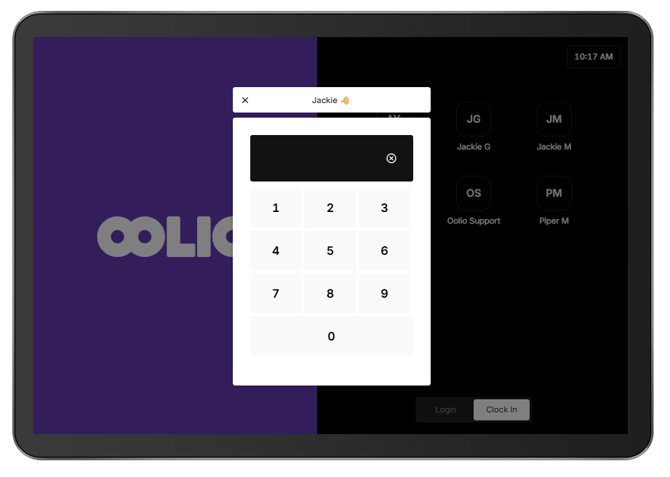
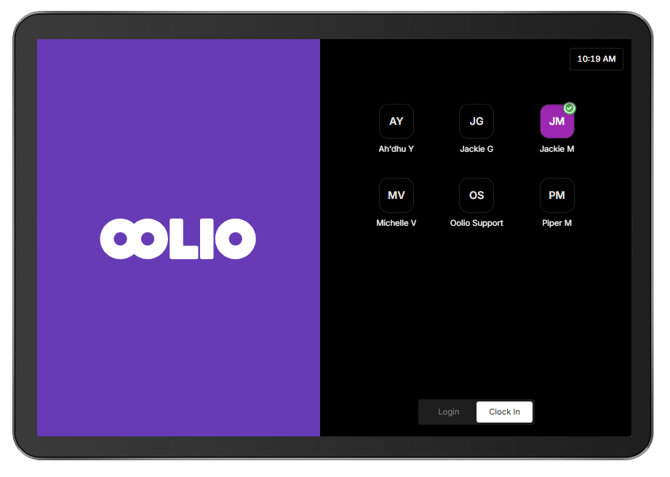
- Select the User.
- Enter the user's PIN.
- Select Clock In.
After clocking in, a green check mark appears next to the user on the Clock In screen.
Step 2: Clock out
At the end of a shift:
- From the Clock In screen, select the required user.
- Enter the user's PIN.
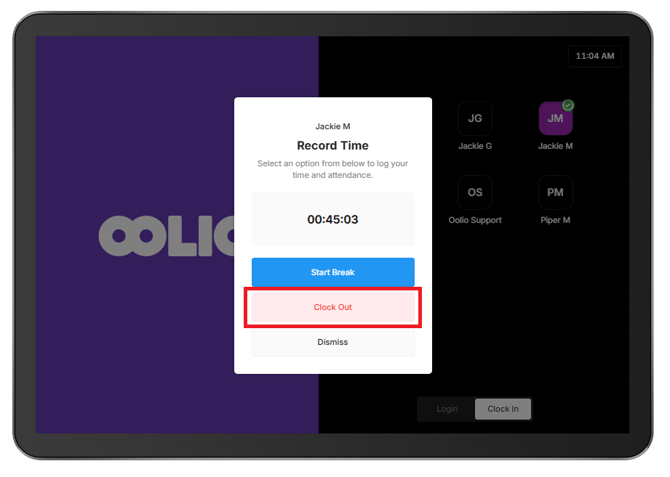
- Select Clock Out.
The user is clocked out and the green check mark is removed from their user on the User Selection screen.
Record a break
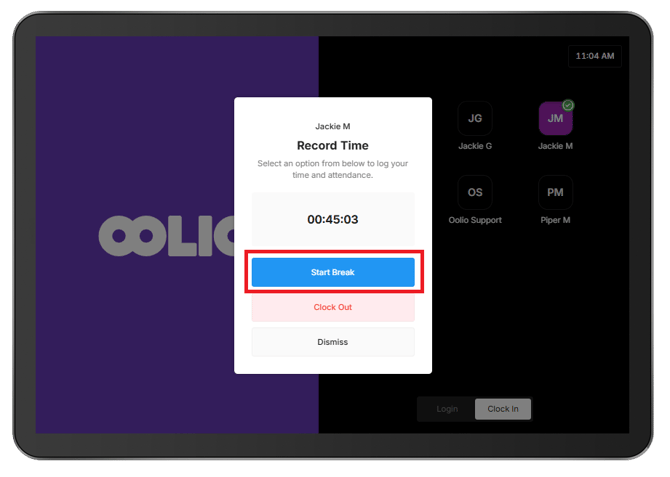
Use Start Break instead of clocking out when leaving for a break during a shift.
Start a break:
- From the Clock In screen, select the active user.
- Enter the user's PIN.
- Select Start Break.
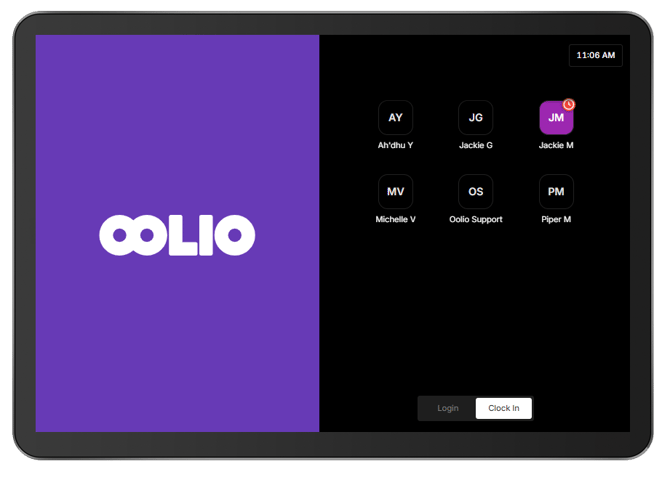
The check mark beside the user changes to a stop sign to indicate that the user is on a break.
End a break:
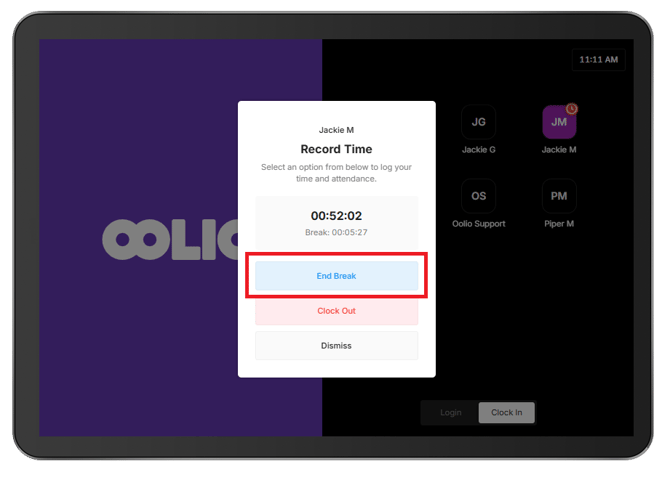
- From the Clock In screen, select the user who is on break.
- Enter the user's PIN.
- Select End Break.
The user becomes active again and working time continues to be recorded.
View the Time & Attendance report
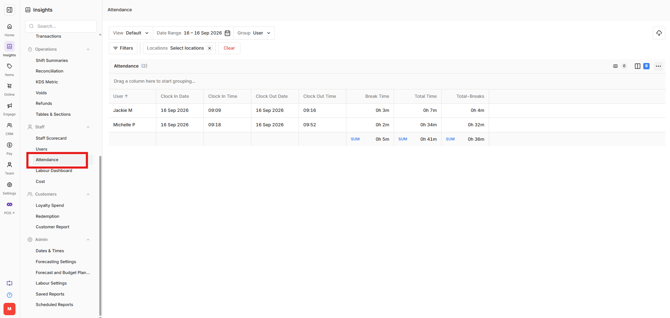
The Time & Attendance report provides a record of staff working hours and recorded breaks.
- Open Back Office > Insights > Staff > Attendence.
- Filter the report by the required venues or dates, or search using the user's name.
- Select Apply.
The report includes:
- User Name
- Start Time
- Finish Time
- Break Time
- Total Time (Including Break Time)
- Total Time (Excluding Break Time)
Note: Clocking and attendance records may not appear in reporting until the shift has been closed, or the staff member has completed their clock-out.