
Time & Attendance in Oolio One POS allows staff to clock in and out, record breaks and track their working hours. Managers can also view staff timesheets, clock out staff who have forgotten and check attendance when closing a POS shift.
Before starting
- Time & Attendance must be enabled in Oolio One Back Office. See 🔗 Manage Time & Attendance in Back Office for setup instructions.
- Staff must have a PIN configured to clock in and out.
- Managers require the Update Worklogs permission to view and manage timesheets in POS.
Step 1: Clock In
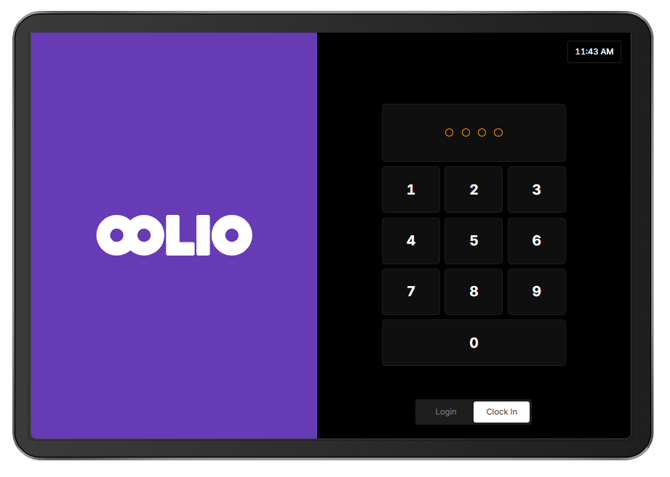
Staff can clock in directly from the Oolio One POS lock screen.
- On the POS lock screen, select the Clock In tab.
- Enter the staff PIN.
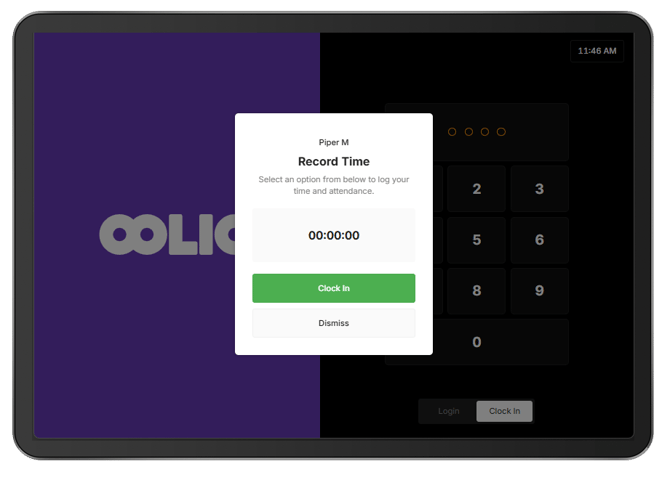
- Select Clock In to start recording work time.
Once clocked in, the timecard displays a running timer showing the elapsed work time.
Step 2: Record Breaks and Clock Out
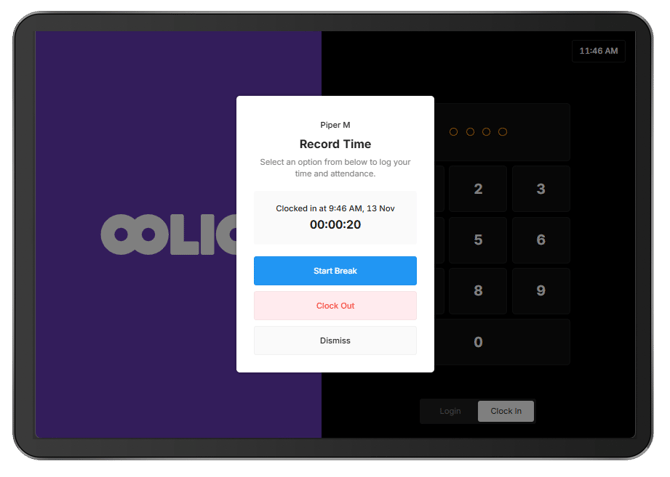
Staff can start or end breaks and clock out from the Clock In tab on the POS lock screen. The available actions depend on their current attendance status.
- Select the Clock In tab and enter the staff PIN.
- Choose the required action:
- Start Break: Start recording a break.
- End Break: Finish the break and resume work.
- Clock Out: Finish the shift and stop recording work time.
The timecard updates to reflect the selected action.
Step 3: View Timesheets & Clock Out Staff
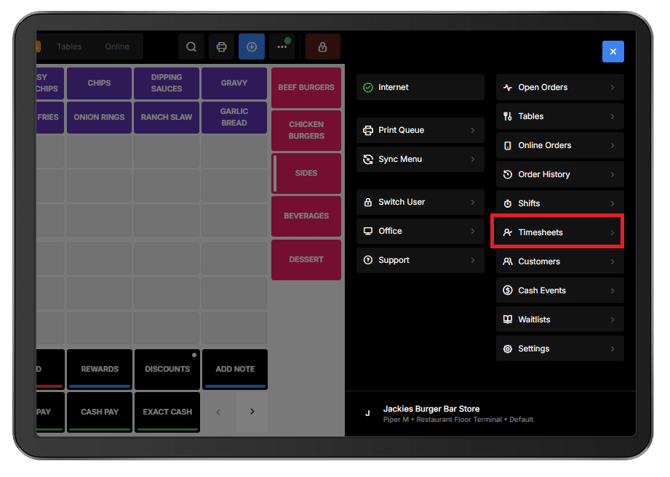
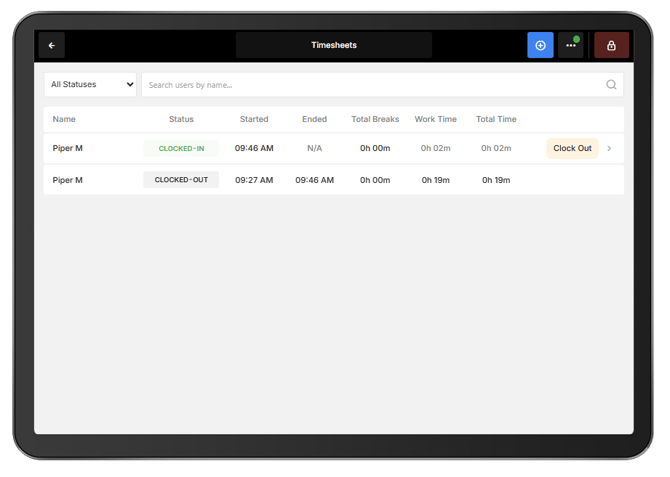
Managers can view the current day's timesheets and clock out staff who have forgotten to do so.
- In Oolio One POS, open Menu > Timesheets.
- Review the timesheets for the current business day.
The list displays staff names, attendance status, clock-in and clock-out times, breaks and total hours worked. Use the search field to find a staff member or filter timesheets by status.
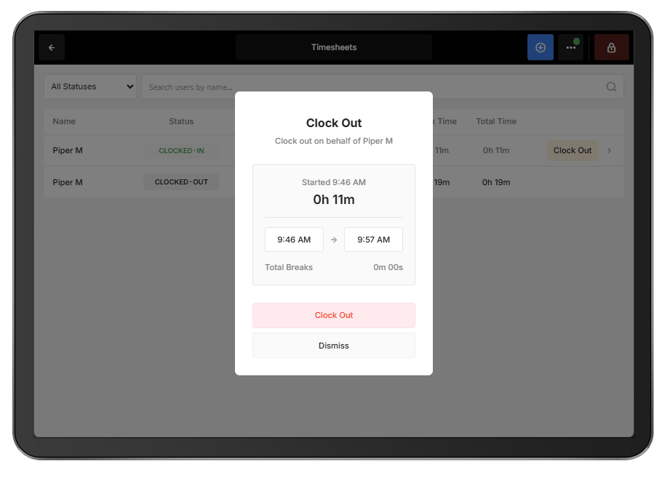
To clock out a staff member:
- Find the staff member in the Timesheets list.
- Select Clock Out.
- Review the clock out time, which defaults to the current time.
- Adjust the clock out time if required, then select Clock Out to confirm.
The staff member's timesheet updates to Clocked out.
Step 4: Review Timesheets When Closing a Shift
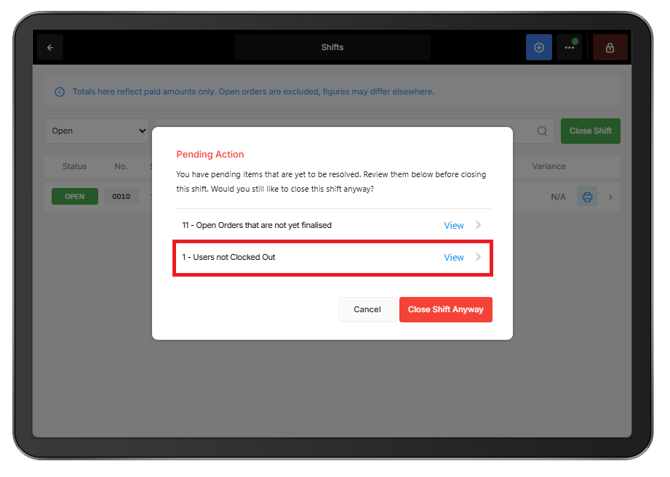
When closing a POS shift, Oolio One checks whether any staff members are still clocked in.
If staff are still clocked in, a Pending Action message appears with the number of staff who have not clocked out.
The following options are available:
- View: Open the Timesheets screen to review staff who are still clocked in and complete any required clock outs.
- Close Shift Anyway: Close the POS shift without clocking out the remaining staff.
If the shift is closed without clocking out staff, their timesheets remain open and can be corrected later in Oolio One Back Office.
For information about recording missing timesheets, correcting attendance records and exporting timesheets, see 🔗 Manage Time & Attendance in Back Office.