
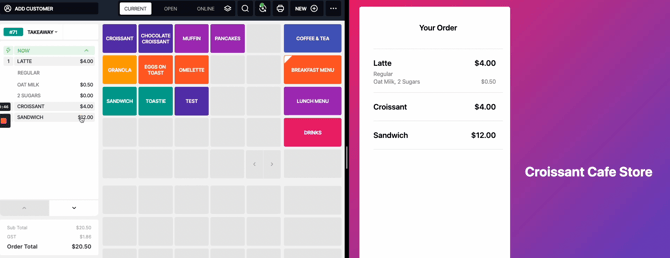
Having a Customer Screen help your customers to:
-
See their orders being typed & allow them to correct mistakes
-
Choose to receive the receipt via: Email / Phone Number if wanted
See their orders being typed & allow them to correct mistakes
Choose to receive the receipt via: Email / Phone Number if wanted
ENABLE CDS in your BACK OFFICE
Once your Customer Screen is installed in your Venue, you can start using it right away
-
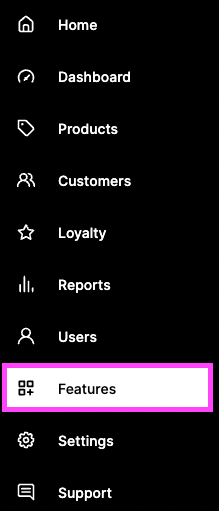
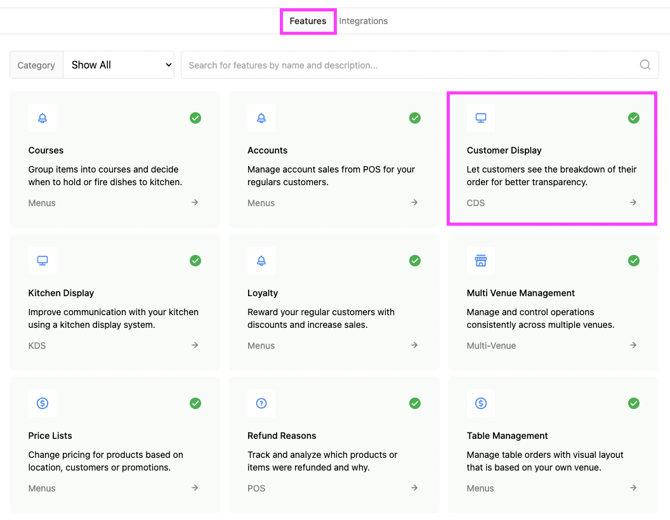
In your Back Office => Features => Click on ' Customer Display ' => ENABLE :
In your Back Office => Features => Click on ' Customer Display ' => ENABLE :
CONNECT CDS to your POS
In just few steps using your phone camera & QR Codes
-
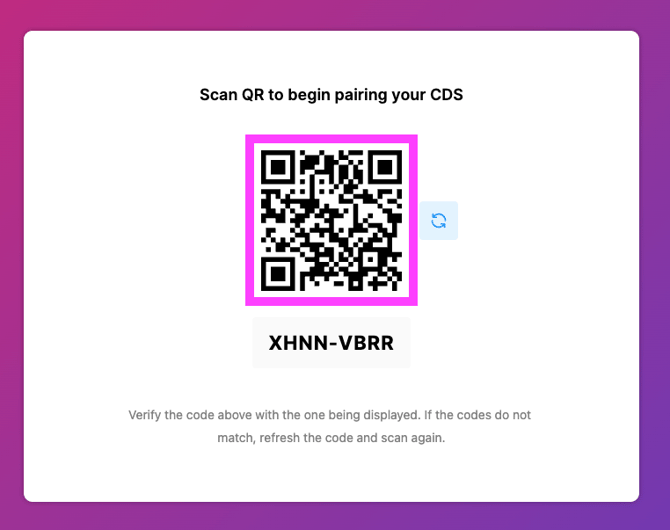
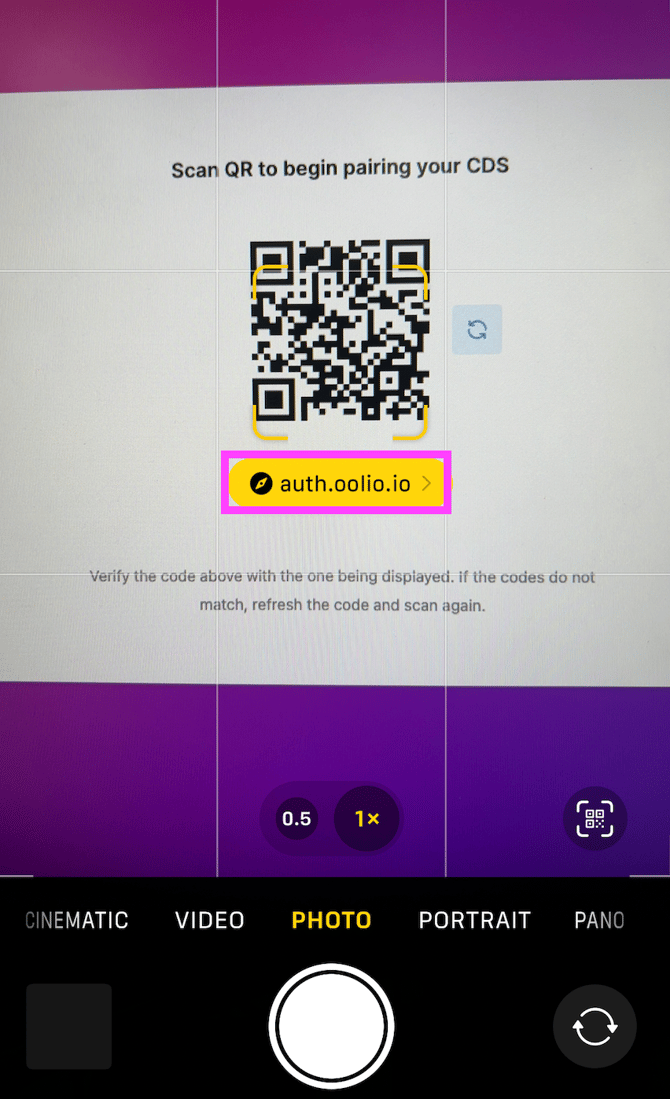
In your CDS => Scan the QR code using your phone's camera:
In your CDS => Scan the QR code using your phone's camera:
2. Click on the link displaying ' auth.oolio.io ':
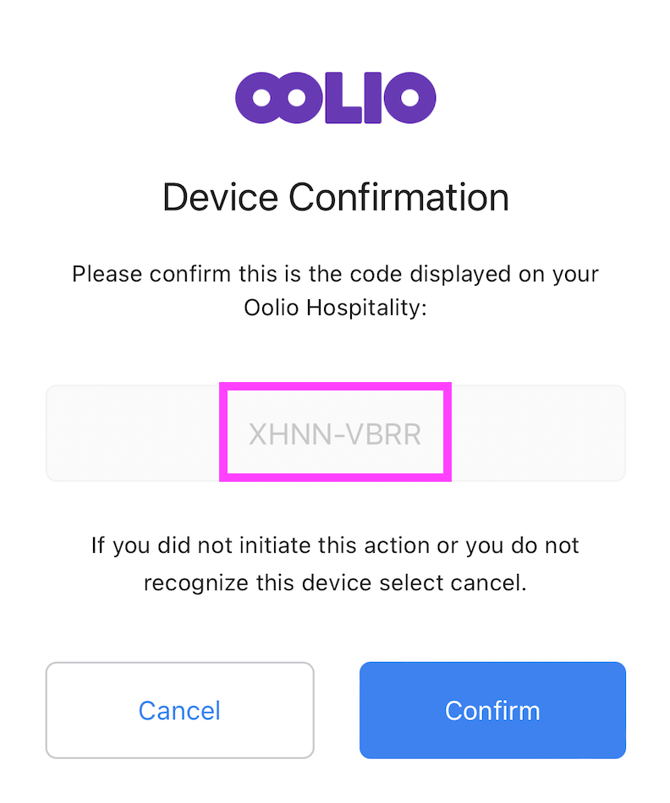
3. On your Phone => a pop-up will appear asking you to confirm the the 8 digits code is matching the one on your CDS => Confirm:
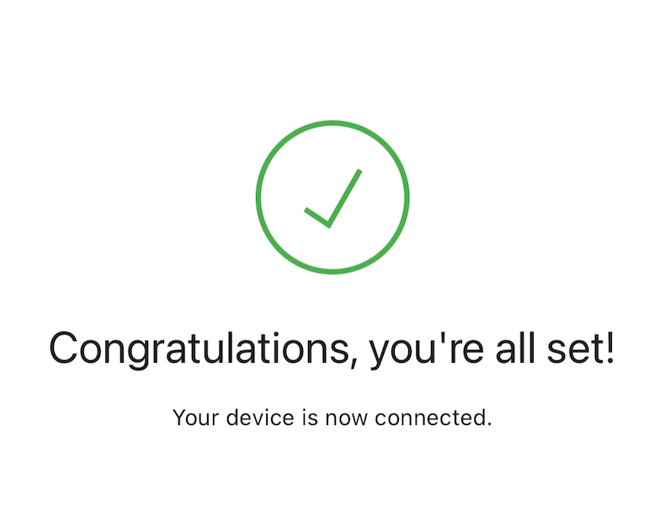
4. A ' Congratulation ' message will appear on your phone:
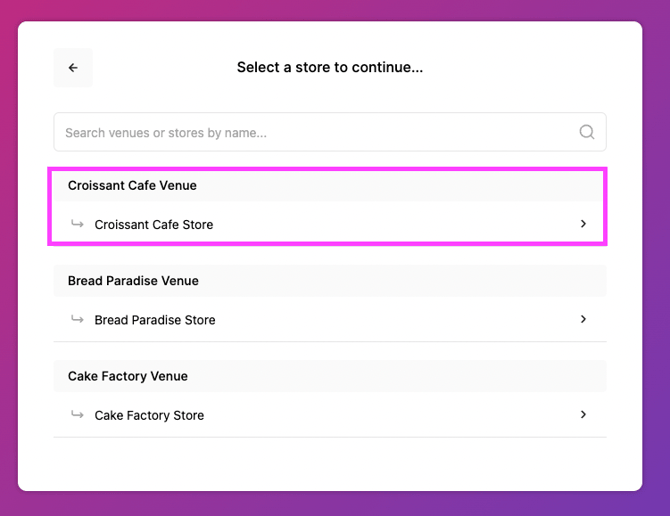
5. In your CDS => If you have several venues => choose the venue using that particular CDS :
6. You will be asked to select a device ( POS, mPOS, Ipad, ...) choose the one that should be connected to your CDS:
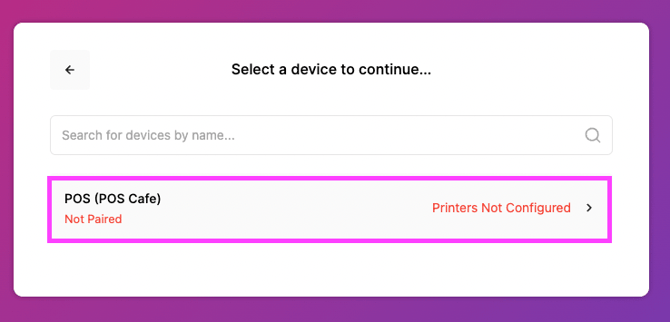
7. You are now connected & can start using your CDS