
Cancel DoorDash orders directly from the Oolio One POS or Oolio One Back Office before they have been accepted. Orders that cannot be fulfilled can be rejected with a reason, which is sent to DoorDash to notify the customer and manage the cancellation.
When can a DoorDash order be cancelled?
DoorDash orders can only be rejected in Oolio before they have been accepted.
- Pending orders: Can be rejected from the POS or Back Office.
- Accepted orders: Must be cancelled through DoorDash support using the DoorDash Merchant Portal.
- Auto-accepted orders: Are accepted automatically when received and must also be cancelled through DoorDash support.
Important: Rejected orders cannot be reinstated. Check that the correct order has been selected before confirming the cancellation.
If an order is being rejected because an item is unavailable, update the item's availability to prevent further orders. See 🔗 Manage a DoorDash Menu in Oolio One
Reject a DoorDash order from the POS
- On the Oolio One POS, open the Online tab.
- Find and select the DoorDash order to cancel. The order details will appear on the right of the screen.
- Select Reject.
- Under Select Reason, choose the reason for rejecting the order.
- Enter an additional note if required (optional).
- Select Reject Order to confirm.
The order will be rejected and DoorDash will be notified of the cancellation.
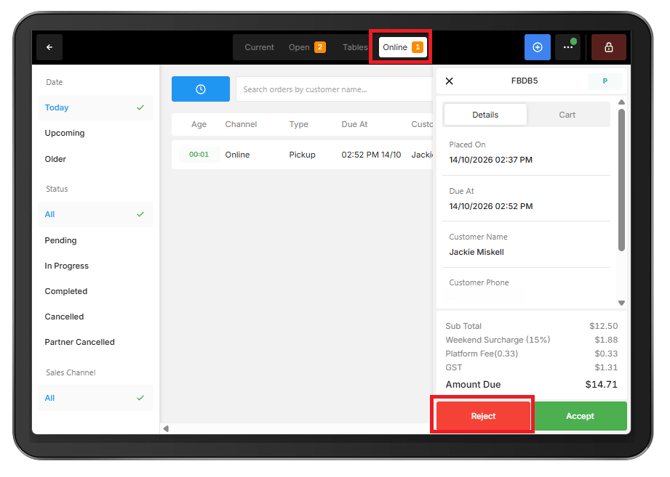
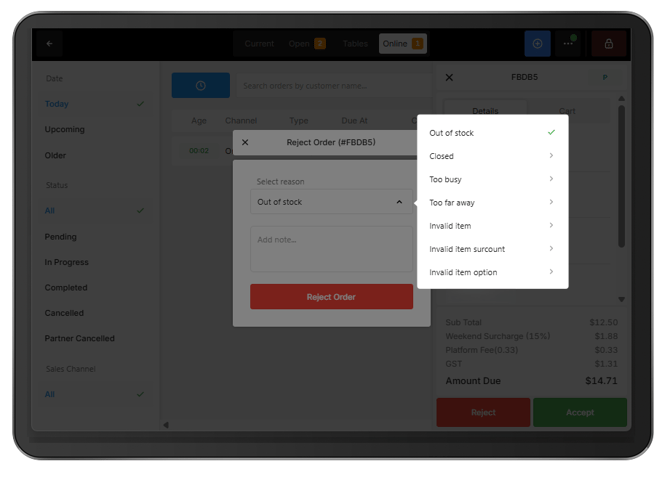
Note: Use the filters on the left of the Online Orders screen to locate orders. Set Sales Channel to DoorDash and Status to Pending to display DoorDash orders awaiting acceptance.
Reject a DoorDash order from Back Office
DoorDash orders can also be rejected directly from Oolio One Back Office.
- In Oolio One Back Office, navigate to Online > Operations > All Orders.
- Find and open the pending DoorDash order.
- Select Reject Order.
- Under Select Reason, choose the reason for rejecting the order.
- Enter an additional note if required (optional).
- Select Reject Order to confirm.
DoorDash will be notified of the cancellation.
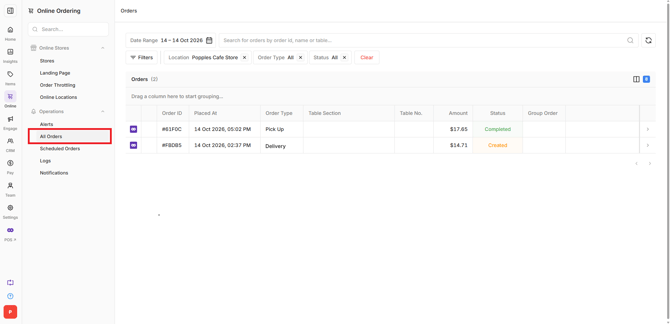
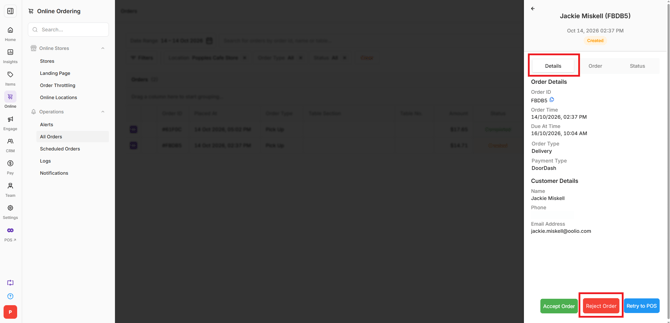
Select a rejection reason
When rejecting a DoorDash order, select the reason that best describes why the order cannot be fulfilled. The selected reason is shared with DoorDash.
Common rejection reasons
- Out of stock: One or more items in the order are unavailable.
- Closed: The store is closed and cannot fulfil the order.
- Too busy: The kitchen is unable to accept additional orders.
- Too far away: The delivery address is outside the serviceable area.
Menu and pricing rejection reasons
These reasons can be used when an order contains invalid menu information or pricing discrepancies.
- Invalid item: The order contains an item that is no longer available or does not exist on the menu.
- Invalid item option: An option or modifier included in the order is invalid.
- Invalid item variant: A product size or variant included in the order is invalid.
- Wrong item price: The item's price does not match the configured menu price.
- Wrong item variant value: The value associated with a product variant is incorrect.
The following additional rejection reasons may also appear:
- Invalid item surcount
- Invalid order surcount
- Wrong item total before surcounts
- Wrong item total after surcounts
- Wrong item surcount value
- Wrong order surcount value
Note: If menu or pricing discrepancies occur regularly, check that the latest Online Menu has been published to DoorDash. Contact Oolio Support if the issue continues.
What happens when an order is rejected?
Once a DoorDash order has been rejected:
- The cancellation is sent to DoorDash, usually within seconds.
- DoorDash notifies the customer and manages any applicable refund.
- The order status changes to Cancelled in the POS order list.
No separate refund is required through Oolio for orders paid through DoorDash.
Troubleshooting
The Reject button is not available:
-
Check whether the order has already been accepted or automatically accepted.
-
Accepted orders cannot be rejected through Oolio. Contact DoorDash support through the DoorDash Merchant Portal to request a cancellation.
An incorrect order was rejected:
-
Rejected orders cannot be reinstated through Oolio. Contact DoorDash support through the Merchant Portal for assistance.
An order shows as Partner Cancelled:
-
The Partner Cancelled status indicates that the order was cancelled by DoorDash or the customer rather than the store. No further action is required.
An order appears in Back Office but has not reached the POS:
-
In Oolio One Back Office, navigate to Online > Operations > All Orders.
-
Find and open the affected order.
-
Select Retry to POS to resend the order to the POS.
Orders are repeatedly being rejected because an item is unavailable:
-
Mark the affected item out of stock from the POS or Back Office to prevent further orders for that item.