Bulk Editing allows multiple products to be updated at the same time in Oolio One Back Office. It can be used to change settings such as pricing, categories, tax, reporting groups, locations and printer profiles without editing each product individually.
Products can be selected individually, or filters can be used to find and select a particular group of products before applying an update.
Step 1: Select the products to edit
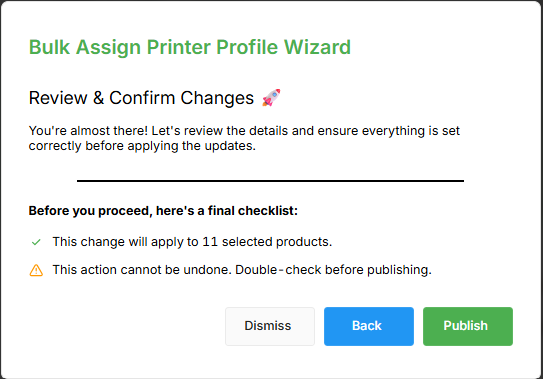
- Open Back Office > Items > Library > Products.
- Select the checkbox beside each product that needs to be updated.
- To work with a particular group of products, use the available filters to narrow the product list first. For example, use the Category filter to display products from a particular category.
- To select all products currently displayed, select the checkbox beside Name at the top of the list.
Step 2: Open Bulk Actions
After selecting the required products:
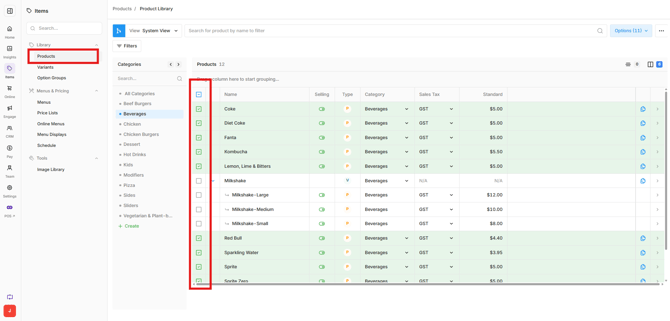
- Select the blue Options button at the top right of the screen.
- Check the number displayed on the button to confirm how many products have been selected.
- Select the required action.
Bulk Edit Actions
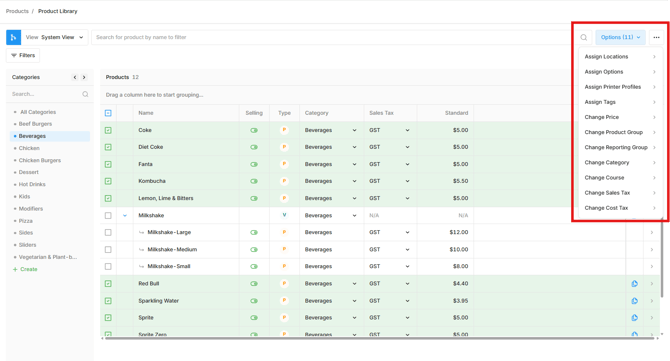
The following actions are available when editing multiple products.
Assign Location:
-
Change the locations where the selected products are available.
Assign Options:
-
Assign Option Groups or Modifiers to the selected products.
Assign Printer Profiles:
-
Assign Printer Profiles to the selected products to control where they print.
Assign Tags:
-
Assign Tags to multiple products.
Change Price:
-
Change the selling price of the selected products.
Change Product Group:
-
Move the selected products to a different Product Group.
Change Reporting Group:
-
Assign the selected products to a Reporting Group for reporting purposes. Products without a Reporting Group are reported under Other.
Change Category:
-
Assign the selected products to a different Category.
Change Course:
-
Assign the selected products to a Course.
-
Course assignment is used when automatic Course assignment has been configured for the venue.
Change Sales Tax:
-
Change the Sales Tax applied when the selected products are sold.
Change Cost Tax:
-
Change the Cost Tax applied to the selected products.
Replace or Extend existing settings
When bulk editing settings that can contain multiple values, such as Options, Tags, Locations and Printer Profiles, select how the new values should be applied:
- Replace: Removes the existing configuration for that setting and replaces it with the selected values.
- Extend: Adds the selected values to the existing configuration without removing values already assigned.
For example, if several products are already available at Location A and Extend is used to add Location B, the products will be available at both locations. If Replace is used to add Location B, the existing Location A assignment is removed and replaced with Location B.
Important: Check whether Replace or Extend is selected before applying a bulk update, particularly when updating products across multiple locations.
Review and confirm changes
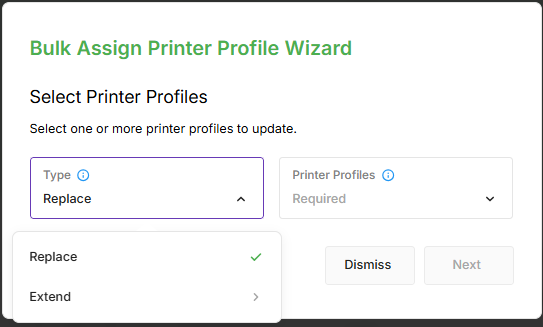
After configuring the Bulk Edit Action, review the changes before applying them.
The confirmation screen displays how many products will be affected, for example This change will apply to 11 selected products.
Check the changes and select Publish to confirm and apply them to the selected products.