
How to enrol in Oolio One Loyalty and add your digital loyalty card to Apple Wallet without an ‘App’ for quick, tap-to-show access at the register.
Before You Start You'll Need- Access to the loyalty sign-up page — either via the POS at the location, or through a direct sign-up link
- A few minutes — the whole process takes under 3 minutes
Step 1 — Access the Loyalty Sign-Up Page
Loyalty Sign-Up › Registration
You can access the sign-up page in two ways:
- At the register: A staff member opens the loyalty sign-up flow on the POS — they'll tap Add Customer and be prompted to enter your details on-screen.
- Via a direct link: visit a link provided by the location to open the sign-up page on your own device.
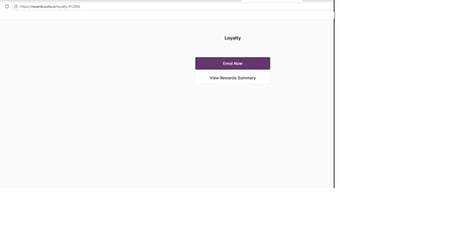
Once open, you'll see the Oolio Loyalty registration form:
Access via Web
 Access via POS

Step 2 — Complete Customer Details
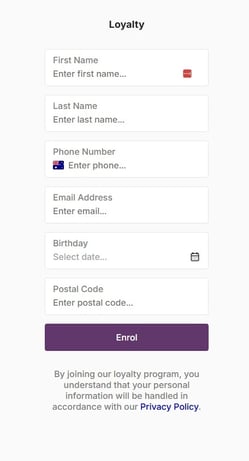
Fill in all required fields on the registration form. You'll need to provide:
- A first and last name
- A valid email address — this is where the loyalty card and wallet link will be sent
Double-check the email address before continuing — if it's entered incorrectly, the customer won’t receive the confirmation email.
Access via Web
Access via POS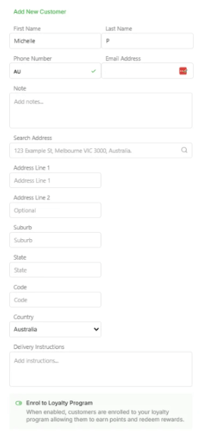
Once all fields are filled in, tap the Enrol button to submit your registration.
You'll see a confirmation message on-screen letting you know your enrolment was successful. A confirmation email will be sent to the address you provided shortly after.
💡 Tip: If the Enrol button is greyed out, check that all required fields are filled in and your email address is in the correct format (e.g. name@example.com).
Step 3 — Open The Confirmation Email
Email Inbox › Oolio Loyalty Confirmation
Check your inbox for an email from Oolio Loyalty. The email will contain:
- A summary of your new loyalty account
- A View My Rewards button
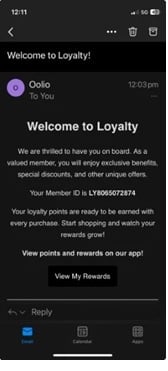
If you don't see it within a few minutes, check your spam folder.
Step 4 — View Your Rewards
Tap View My Rewards This opens a web view of your personal Rewards page, where you can see your current points balance and loyalty card.
From this screen, you can add your loyalty card directly to Apple Wallet.
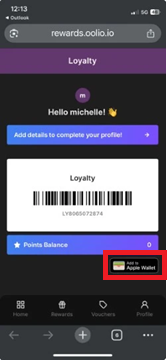
Tap the Add to Apple Wallet button on your Rewards page.
Your iPhone will display an Apple Wallet prompt showing a preview of your loyalty card. Tap Add to confirm. Your card will be saved to Apple Wallet and will appear under the "Passes" section.
💡 Tip: Once added, you can access your loyalty card from the lock screen or Apple Watch — no need to open the app at the register. Just show the barcode on-screen to earn or redeem points.
Frequently Asked Questions
I didn't receive my confirmation email — what should I do?
Check your spam or junk folder first. The email comes from Oolio Loyalty and may be filtered by some providers. If it's not there after 5 minutes, ask a staff member at the location to re-send your enrolment or check that your email was entered correctly.
I tapped "Add to Apple Wallet" but nothing happened — what's wrong?
Make sure you're opening the link on your iPhone (not a desktop browser). The Apple Wallet prompt only appears on iOS devices. If the issue persists, try opening the email on your iPhone directly and tapping View My Rewards again.
Can I sign up without being at the location?
Yes — if the location has provided you with a direct sign-up link or QR code, you can complete enrolment on your own device at any time.
My card was added to Apple Wallet, but I can't find it.
Open the Wallet app on your iPhone and scroll down to the Passes section. Your loyalty card should appear there. You can also search for it using the Wallet search function.
Can I have more than one loyalty card in Apple Wallet?
Yes — if you're enrolled at multiple locations, each will have its own pass in Apple Wallet.
Troubleshooting
|
Issue |
What You'll See |
Fix |
|---|---|---|
|
No confirmation email received |
Inbox is empty after enrolment |
Check spam/junk folder. Ask staff to confirm your email address was entered correctly and re-send if needed. |
|
Enrol button is greyed out |
Button is inactive on the sign-up form |
Ensure all required fields are filled in and your email is in valid format (name@example.com). |
|
"Add to Apple Wallet" doesn't appear |
Button is missing from the Rewards page |
Confirm you're opening the link on an iPhone. The button is only shown on iOS devices. |
|
Apple Wallet prompt doesn't appear after tapping the button |
Nothing happens after tapping Add to Apple Wallet |
Try refreshing the Rewards page and tapping again. Ensure your iOS is updated to version 16 or later. |
|
Card added but not visible in Wallet |
Can't find the pass after adding |
Open Wallet app › scroll to Passes section. If still missing, restart the Wallet app and check again. |