
Before the online store can be configured, the location must be activated and linked to the POS in Oolio Orders
Step One: Find the POS Location ID
- Log into the portal at oolio.io
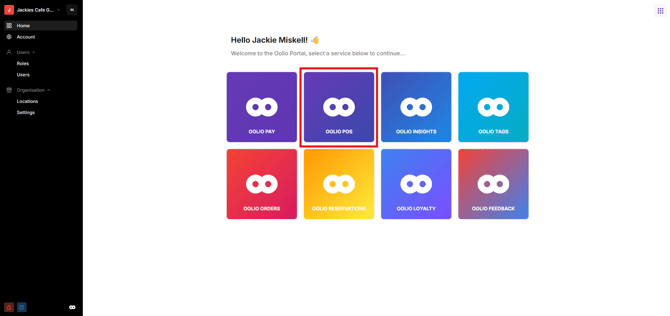
- Select Oolio POS
- In the menu on the left, navigate to Features and then select the Integrations tab and Oolio Orders
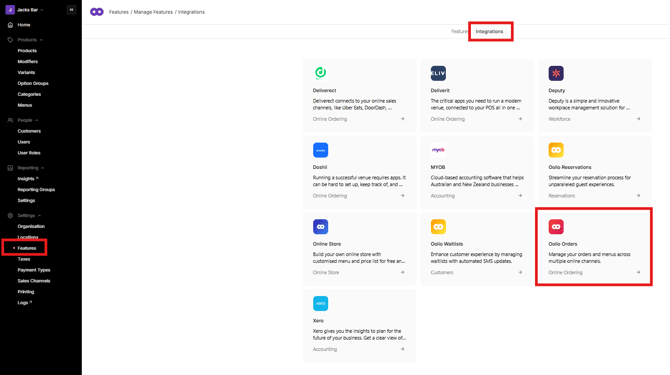
- Select 'Enable' and then the info icon next to the location you wish to activate
- Copy the POS Location ID
Step Two: Connect the location in Oolio Orders
- Navigate back to the portal at oolio.io
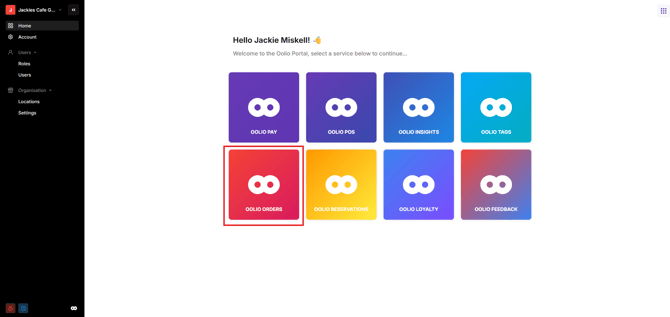
- Select Oolio Orders
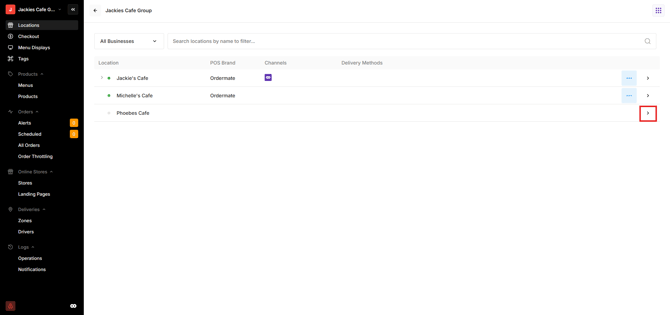
- Select the arrow next to the location you wish to activate
- Select the POS Brand and paste in the POS Location ID from step one
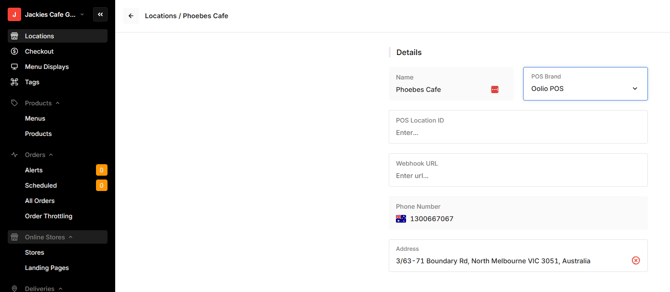
- Select Connect
The Online Store can now be created.